Showing posts with label Documentation. Show all posts

Thursday, May 29, 2014

ZBrush Export to Unity 3D, Mesh + UV

ZBrush is a great tool in many ways. But there are other ways in which it is infuriating. It is mysterious about what it is doing in many cases, and the documentation on these mysteries is usually nothing more than a longer version of the text on the buttons and menus.

UV maps are one of the places where the data is slim, and the documentation tells you nothing about what's going on with the choices you make. It's like that Sherlock Holmes quote about it making perfect sense once you already know the answer.

On top of that, there's a lot of FUD about transferring data from ZBrush to Unity. Certainly there are other programs for which Unity makes the process more or less seamless, but ZBrush is perfectly capable of providing all the same data to Unity. It's just a matter of knowing the correct process. Which is difficult with ZBrush if you're just trying it on your own, because there are so many settings for which ZBrush doesn't show you directly the effects of your choices. You have to keep going back and forth between ZBrush and Unity--does this work? Does that work? What about that? On and on. And at each stage you're guessing, because you can't look at what comes through in Unity and say, "Oh, I see the problem. I need to just do -that-!" It's just a mishmash of unmatched data.

Well, I spent two solid days experimenting. Trying out different things, getting something to work, making sure I can do it twice in a row and have it work both times. Researching on the internet to see if someone else had a better way, and so on. You don't need to hear the whole litany--getting it done was my job, now here's the results for you to take advantage of so that you can get on with your project.

I'm using Unity 4.3.4f1 and ZBrush 4R6 for this. I'm covering just exporting the object mesh and its UV texture here. A normal map works similar to the UV texture--the key point being that it has to be vertically flipped to align with the mesh in Unity. If you're interested in another post that covers normal maps specifically, email me or leave a comment and I'll do it.

You've Got an Object in ZBrush

So your object is sculpted and polypainted in ZBrush, now you want to drop it into Unity.

First, you've got to convert the polypainting into a separate image file that will wrap around your object's mesh in Unity. This is called a UV texture. What makes things confusing is that it's often called a UV Map in casual usage, but a UV map is actually something else. The UV Map is the relationship between pixels on a UV Texture and points on the mesh. In ZBrush these are separate and distinct items. In many other programs, the UV Map and UV Texture are conflated to simplify things. Which makes it seem like ZBrush has an extra step when creating UV Textures for Unity and other 3D software.

Before beginning, save your project and your tool(s) in ZBrush. There will be opportunities for things to get messed up or confused.

Create the UV Map
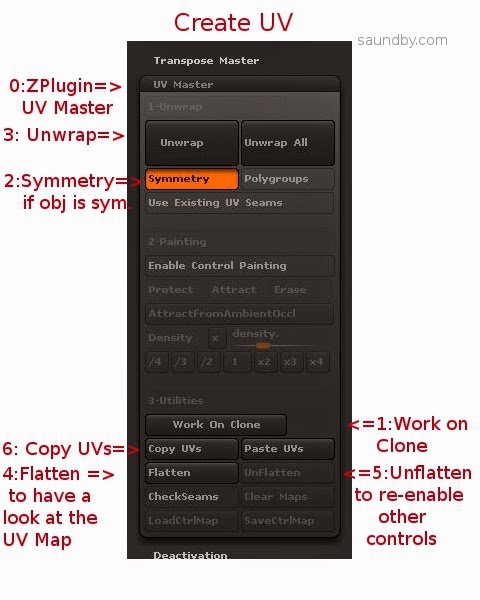

0: Open up UV Master in the ZPlugin menu.

This is where we'll create the UV Map, the Texture itself comes later.

1: Click Work on Clone

This takes care of a bunch of stuff to prepare for making the UV without disturbing your original object. I've screwed up several meshes trying to go without it. My advice is to just use it, it makes things easier.

2: Turn on Symmetry if your object is symmetrical.
Symmetry will try to make a symmetrical UV map, which results in a symmetrical UV texture that's easier to edit by hand. If your object is just sort of symmetrical, you might give it a try, too.

3: Click the big Unwrap button.
This will unwrap the current tool. My advice is to work one tool at a time, and to reduce the number of tools to the minimum necessary before getting to this point to reduce the repetition of exporting meshes and maps.

4: Click Flatten to have a look at the shape of your UV map.
You will see a wireframe of the UV map, this is the form into which your object's polypainting will be projected to make a UV texture. If you're expecting to do any hand editing of the texture's details, make sure that the forms are not too distorted and that seams are not crossing critical areas of the mesh, like across the face of a character. If they are, you can use Control Painting to get a better mesh.

I'm not going to cover that in detail, there are good videos on this at Pixologic and on YouTube, but the short form is:

  • Click Unflatten to get the controls back.
  • Click Enable Control Painting
  • Click Protect, then draw red on the parts of your mesh where you absolutely don't want a seam in the UV map (like the face of a character.)
  • Click Attract, then draw in blue the areas that you'd like the seam to be (like the back of a character's head, or under their chin.)
  • Click Unwrap again and check the results using Flatten.

5: Click Unflatten to get your controls back.

6: Click Copy UVs to put your UVs from the Clone on the Clipboard.


You've now created a UV map, which you need to apply to your original object to guide the creation of a UV texture from its polypainting.
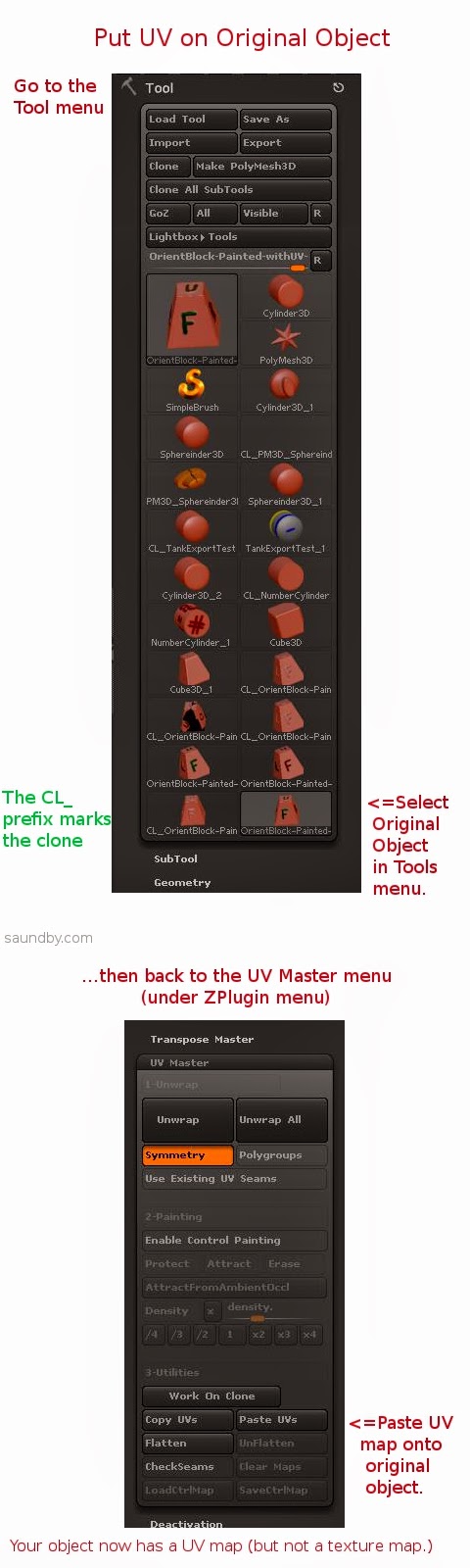


7: Select your original object from the Tool menu.
This will bring it back into the Document view and make it the active object. If something's wrong, or you can't find it, reload it using Load Tool (because you saved it before starting like I advised, right?)

8: Click Paste UVs in the UV Master menu.
This puts the UV from the Clone that's on the Clipboard on your object. It's now ready to have its texture map made from the polypaint on it.

9: Save your tool. Give it a distinctive name, like MyTool-withUVs.ztl.

10: Take a deep breath. The rest is pretty easy.
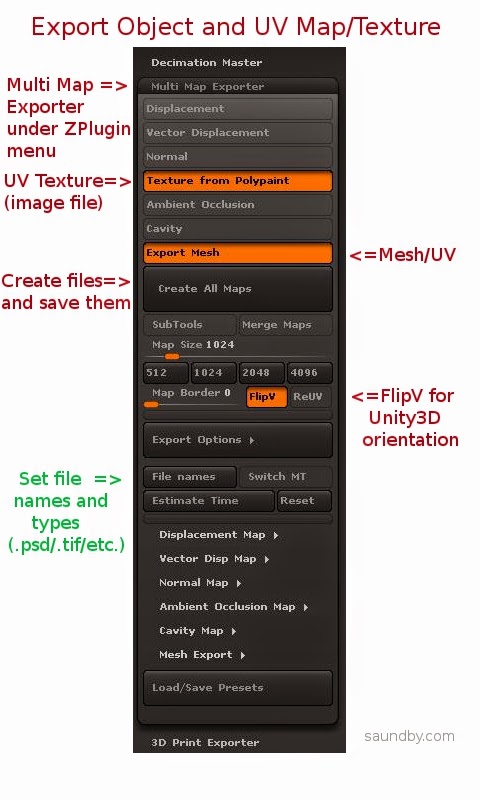


11: Open Multi Map Exporter under the ZPlugin menu.

12: Choose the things you want to export. Mesh and Texture from Polypaint for this example.

13: Choose FlipV to orient maps correctly for Unity.

If you want to have your map files in a specific format, select it in the Export Options and file names sections.

14: Click Create All Maps to create the UV texture and to save the mesh as an .OBJ file. This is one of the most poorly worded bits of button text in ZBrush. Even just "Save" would have made more sense. Oh, well, if we start talking about what's screwy with ZBrush's UI, we'll never finish.

15: Import assets into Unity (Assets=>Import New Asset...).


Gotchas

OK, that's the process. Having it all written out in detail makes it look worse than it really is, it actually happens very quickly once you know it. It's those first few passes that are a problem.

One of the things that really slowed me down in ZBrush is the fact that ZBrush doesn't tell you anything inside ZBrush about what the orientation of the UV map is relative to the base orientation of the mesh. If you open the Tools=>UV Map menu and start clicking the buttons like FlipV, FlipH, Cycle UV, Switch U<>V, it's easy to get lost really quickly as to which transformations you've applied. And there's no simple way to set it back to its base orientation.

Finally, what I ended up doing was creating the UV texture, while applying no transformations at all, then I opened it in GIMP & performed all the tranformations there, saving a clearly marked file for each. Then I pulled the mesh into Unity as well as all the versions of the map. I just drug maps onto the mesh object in Unity until I got the right one (FlipV.)

Colors from ZBrush

To make sure, I saved the map from ZBrush again with FlipV on, and it worked. But then I noticed something. The colors were off on part of the map in Unity. It looked OK in ZBrush and GIMP, but for some reason the color encoding came across wrong in Unity.

Left, Texture map in .psd straight from ZBrush. Right, texture map opened in GIMP and re-saved.

The quick fix was to load the map in GIMP then re-save. It may also be possible to use other file types, like .tif, and have the colors work out perfectly from ZBrush.

The Effects of UV Orientation
The map on the left was saved with FlipV on, the one on the right was saved without. If you get an object looking like the one on the right, check your UV map's orientation, or flip it vertically in an image editor (flip, don't just rotate 180.)

Mesh Orientation

The mesh orientation will get rotated front-for-back when going from ZBrush to Unity, too. It's just a 180 degree rotation, so it's not difficult to fix, just turn it around. If it's facing the camera in ZBrush, it'll be facing away when it comes into Unity.


The object on the left has been rotated to bring the 'F' side (Front) to face the camera, as it was saved in ZBrush, the one on the right is how it came into Unity.

Torn Edges on UVs

You'll notice in that picture of the back of the block above that there's some ragged stuff showing at the edges of the UV map. At first I blamed bringing the map through GIMP, but it does that straight from ZBrush, too. Fortunately the fix for that is simple, too.

For this simple texture, I just did a flood-fill of the black areas of the UV map with the background color (white). With a more complex texture, I would have used smudge or something like to bleed out the edges of the map a few extra pixels.

Map on the left has been cleaned up, UV on the right is as original, with visible seams.

Here are the maps used in the above image:


The original UV texture map from ZBrush.

The UV texture map with the black areas flood-filled with the foreground color of the object.

That's a Wrap

I hope that helps. If you feel I've been unclear anywhere here, or missed something important, please leave a comment or drop me an email message. If I've been helpful, let me know that, too!

Good luck with your ZBrush and Unity endeavors!

Monday, January 6, 2014

Parallel Processes on the XMOS StartKIT

XMOS StartKIT board and its shipping box.

XMOS sent me a free StartKIT development board just in time for Christmas. Now that the festivities are over, I've had a chance to get started with it. It's a bit frustrating because XMOS's documentation has the necessary information scattered rather broadly, and documents that you'd expect to contain certain pieces of information do not.* It's all there, just poorly organized & often hidden in long documents where you wouldn't expect it.

That said, the hardware is exciting in its potential. Once I got through the basic tutorial stuff I went to write a simple multiprocessing program--handing over the blinking of two LEDs on the board to two independent processes.

Here again I ran into documentation deficiencies. XMOS presents code examples in their docs as snippets, not full programs. This leads to misunderstandings due to lack of context. I was able to get a program going, on the third attempt. The first syntax I tried created two dependent processes. The second's syntax was not accepted even though it was copied from a sample snippet--it had a variable that needed to be declared, but I didn't know what type to declare it as, and the declarations are left out of the snippets. The third try worked, but only after enough time spent reading and time spent doing some fortunate guesswork to have gotten a lot further with another, better documented hardware platform.

Lighting a Candle While Cursing the Darkness

I still think this is the right platform for the initial ideas I had for it, though. So as I press on, step by step, in implementing those ideas, I'm going to document what I learn & hope to save others time and trouble. I've made a couple of resolutions about the code, similar to those on the code for my Begin with Java blog:

1. All examples will be presented as complete, compilable programs.

2. All examples will use multiprocessing syntax and structure.

Look for this code to appear on my website, saundby.com soon.

Until then:

Don't follow the example syntax XMOS uses of writing your code inside main(). All main() should contain is channel declarations and par{} blocks. Put all your code into functions to be called inside par{} blocks.

The code for the dual process LED blinker:

/*
 * LED Tests.xc
 *
 *  Created on: Jan 5, 2014
 *      Author: saundby
 */
#include <xs1.h>

out port    p1              =   XS1_PORT_1A;    //PORT 1A for D1 LED
out port    p2              =   XS1_PORT_1D;    //PORT 1D for D2 LED

void led1(){
    while(1){ //run forever
        p1 <: 1; // LED D1 On
        delay_milliseconds(200);
        p1 <: 0; // LED D1 Off
        delay_milliseconds(200);
    }
}

void led2(){
    while(1){ // run forever
        p2 <: 0; // LED D2 Off
        delay_milliseconds(50);
        p2 <: 1; // LED D2 On
        delay_milliseconds(350);
    }
}

int main(void) {
    // Note: put the 'forever' loop in each of the 
    // individual tasks, not out here.
   par{
       led1();
       led2();
   }
   return 0;
}

* It took me forever to find the electrical characteristics of the I/Os in the data sheets, but they are there. There just isn't a data sheet for the specific IC used in the StartKIT, which is a unique item not for sale separately. Personally, I consider it a major oversight to not either provide a data sheet for this specific IC or to include that information in the Hardware Manual for the StartKIT. Based on the scuttlebutt in the forums, I'm using the datasheet for the XS1-A8A-64-FB96 (PDF) as the closest analogue.

Tuesday, November 12, 2013

Ted Nelson & Computer Lib at Homebrew Computer Club Reunion

I had a great time at the Homebrew Computer Club Reunion last night, which, I learned, was made possible by a Kickstarter (thank you, KS backers!)

One of the great conversations I had there was with Ted Nelson, author of Computer Lib/Dream Machines and his wife, Marlene Mellicoat. My wife and I had a wonderful time speaking with them. Ted has published a new edition of Computer Lib. It's not a reprint from scans of the original, but a new printing from the original negatives. It's as clear and sharp as the original was back when, possibly even better. It's in the same large format, as well, not scaled down for the size of paper that happens to be cheap and convenient for most books.

Sorry about the fold, I only had my hip pocket as a place to put his flier last night.
I was working so hard at being social last night it didn't even occur to me that I could probably have purchased a copy directly from him right then. I saw that he had a number of copies in his bag, too. It's little things like this that I always think of when people tell me how smart I am. Yeah, about some things, maybe, but about other things I'm not so much.

Nevertheless, I'm going to purchase it now, after the event. I read someone else's copy back when, having noticed it as a pillar on a bricks and boards bookshelf among a number of copies of The Fabulous Furry Freak Brothers (Fat Freddy's Cat was my favorite of the crew.) Now I'm looking forward to having a Computer Lib/Dream Machines book of my own.

If you're not familiar with Ted's work, I strongly recommend correcting that. The web could be so much more than it is, and require far less human "curation" than it does, if it hadn't turned into the mishmash mess of information without proper structure that it has become. I'd say more, but rather than reading my take on what he thinks, go to the source:


Hopefully I'll have a chance to post more about last night's event in future articles. There was so much packed into so little time that my head is still spinning from it. (They managed to recreate the atmosphere of the original meetings perfectly in that regard.)

It was great that my wife got to hear Ted speak during the formal presentation portion of the evening, too. I got to hear him speak a few times back when, he's a dynamic and engaging speaker. He makes you think about how things could be, possibilities that are better than reality. Now we have hearing Ted speak as a shared experience.

Monday, February 7, 2011

Coding Forms for Hand-Made Programs


I've posted some of the coding forms I use on my website.

For me, hand coding and hand assembling software is pleasant and relaxing. It's like crochet or embroidery (I do both of those as well as programming.) Something as simple as a printed form makes it nicer, neater, and faster.

The forms of my own I've posted are generic assembly language forms. I've also posted a TI 960/980 assembly language form as well as some programming forms for the HP-41C, HP-67 and HP-97 that I use with all of my programmable calculators (like my HP-35S.)

Monday, July 7, 2008

Explaining Java's Graphics System | Java's Poor Documentation

One of the hurdles in teaching graphics early is that Java handles graphics in a way that's hard to explain. This results in the graphics code that's handed to the student being treated as a piece of "black magic" for some time. At least with Swing being a standard part of Java now (though the observant student will wonder about that javax.swing thing) it appears more functional.

Sun's explanation makes interesting reading. If you're into doing jigsaw puzzles, this will be right up your alley. I especially like this particular comment near the beginning:
Both the AWT (abstract windowing toolkit) and Swing provide such a [graphics] framework. But the APIs that implement it are not well understood by some developers -- a problem that has led to programs not performing as well as they could.

Since this basically translates as, "Bad programs are written by programmers who can't read our minds," it's not a very flattering comment for Sun's readers.

The paper itself struggles to make sense of it all by recounting the history of Java's graphics subsystem. The reader is left feeling like they walked in on the middle of a conversation since the paper ends up taking so much for granted on the reader's part. I'm sure this was to keep the paper down to a readable length, but it'd be nice to have something both brief and clear. An experienced programmer can sort it out, it's not a hopeless paper. But it's the sort of documentation that keeps the third party market for Java books thriving.

The historical approach and starting the conversation in the middle pervades the Java API Specification as well. Seldom is a clean slate approach taken to explaining anything. Most method descriptions are direct enough, but the descriptions of the packages and classes are meaningless without plenty of background. If you haven't been using Java since 1995, then you have to act like it and go back and read the documentation for the earliest classes to have the background you need to apprehend the references made in the documentation for the new classes.

There's also no functional guide in the standard documentation. If you want to do something specific, you can spelunk around and hope that you'll turn up something. Since the verbs are in the methods within the classes, functional information is hidden below the class names presented in the API reference. Once you do find a class that seems to have the methods you're looking for, you have to hope that you've actually found the best way of doing something. The result is that the best functional guide to Java is Google.

The Java tutorials alleviate the pain to a small degree, but my experience is that most programmers find that they move too slow when the programmers want a direct answer to a question they have. They may come back to the tutorials after they've implemented some working code, to see how it jives with the information in the tutorial, but they'll seldom stick with the tutorial on the first pass.

I suppose it's too much to ask that documentation be written with the usefulness and clarity of, say, the Vic-20 programmer's guide. ;)