Showing posts with label microCarve. Show all posts

Monday, October 3, 2011

CNC Rooster: Third Time's a Charm

In a prior post, I'd made a mistake handling the material when cutting a full 3D object using gcode files generated by Vectric's Cut3D CAM software. After that I tried again. That time things were going swimmingly until I got some gunk on a leadscrew that hung up the X axis and ruined the cut.

Well, I tried again today. After doing some preventative maintenance on my microCarve A4 CNC, testing it thoroughly and making sure of myself as well, I managed to turn out a small urethane rooster:

CNC 3D Rooster cut from Butter-Board using Cut3D and EMC2
Rooster, Side A


CNC 3D Rooster Back Side cut using MicroCarve A4 CNC Router
Rooster, Side B

The part turned out very well. The whole time the second side was cutting, I was fretting over how good my alignment would be. It turned out to be just fine.

The beak looks worse than it actually is because of a loose bit of plastic that'll come off when I scrape it with a thumbnail. It isn't perfect, however, because of the overcut depth I specified for the first side's cut. It's too deep for the thickness of the beak, and though the overall alignment of front and back side is excellent, the beak is at an angle, so one side is lower than the other. If I hadn't specified such a deep overcut, it would not have cut through this way.

Still, it'll clean up nicely.

Further Observations

The facets you see, particularly in areas like the chicken's breast, are part of the original 3D model. They aren't machining flaws. On the second side I cut the machining marks that are there are a little deeper than they should be because I trimmed my tab sizes down way too much, so they flexed a bit during machining.

Still, the overall quality of the part is such that I could clean it up to use as a casting master easily, if I were going to duplicate this part.


The Materials

The prior two tries were done using NC Proofboard, a urethane foam board, with densities of 60 and 48 lbs. per cubic foot. This last one was done in Butter-Board, which has a density of about 64 lbs per cubic foot. All are machinable plastics from Golden West Manufacturing.

60# NC Proofboard
The 60# proofboard was a very nice material. The cell size of the foam is very, very small and could easily be coated to smooth it enough to use a part made from it as a casting master. In fact, the mold release might be sufficient. It's very tough, and machines like a dream.

48# NC Proofboard
The 48# proofboard machines very easily as well, but tends to be a bit more brittle in thin sections than the 60# board. The cell size is about half again as large, but still small enough to be easy to coat, it'd just take more to do it--some sort of filler rather than a primer coat or a thick mold release agent.

Butter-Board
The Butter-Board machines to a fine, smooth surface. It takes a little more care in feed rates than the proofboards, which have a lot of resiliency thanks to being foamed products. But the completed part has an impeccable surface so far as the machining makes it so. It's not as tough in thin sections as the 60# proofboard, but it's stronger than the 48# board in thin sections in general, though it tends a bit toward the brittle.

I like all three materials quite a bit, and plan on getting some more of the Butter-board and 60# NC Proofboard soon for both business and hobby use.

Tooling
The rough cuts were done with a 1/8" 2 flute square end mill, the finishing cuts were done with a 1/16" 2 flute ball nose end mill. Both bits were purchased from IMService, at nice prices and the bits are very good. I was concerned that I may want to use single-flute bits, but these bits performed admirably with these materials. At some point I'll try a future cut with single-flute bits for comparison's sake, but these bits cut well, showed no propensity for clogging. They stayed sharp and cool through the cuts.

CAM Software
As to Cut3D, I'm quite happy with it so far, and I'm planning two more jobs for it in the immediate future. I'm also going to be giving MeshCAM a spin for a high relief piece of work in the near future, and I'll be reporting on that soon.

Monday, June 20, 2011

microCarve CNC Project: Collectable Spoon Rack

Here's the initial results of my spoon rack projects as mentioned in prior posts:

My Spoon Rack Project Idea

Decorative Motifs for the Spoon Rack

Here's the first one:

A new spoon rack I designed and built, made with my microCarve A4 CNC

CNC cut collectable spoon rack.

Face on view of designs cut with my CNC machine.


I have parts for 3 cut out. There's a bit of manual finish work yet to do for the remaining ones. The weather has turned hot and dry, which is good for the staining work.

Tuesday, June 7, 2011

Decorative Motifs in GCode for CNC

My manual gcode workflow is getting better. Until I'm in a position to pick up some commercial CAM software (probably early fall later this year), I'm getting by with manual processes. It's not too bad, the fact is there's still a lot I'm learning about machining while I work. The lack of software doesn't mean lack of projects at this point.

I have a much better idea of how things are going to turn out when I design them now, so I'm not wasting nearly as much time designing things that aren't going to work out when I make them now. Here are my latest test cuts:

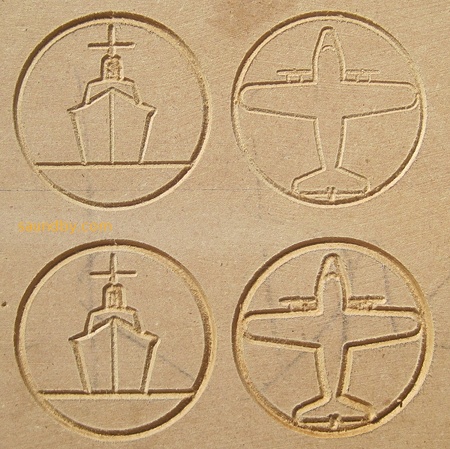
Decorative motifs for woodworking cut with microCarve A4 CNC
Testing the motifs with different depths of cut.


These are some decorative motifs for my spoon rack project. My first drawings were of designs that were far too involved for this project's scale. This set, above, turned out pretty much exactly as I drew them on the green engineering paper. In these tests I was trying out different depths of cut (set using variables in the gcode.)

The first fully complete and ready for public viewing spoon rack should be done soon. I've been going back and forth between different elements of the project, touching things up and trying to get the different parts all in sync, not only in mechanical properties but also in the coding standards I use for the files. I'm intending to publish this as a project on my website once it's done.
My present workflow goes something like this:

  1. Come up with idea.

  2. Draw it out on green engineering pad.

  3. Lay out dimensions on drawing relative to a selected origin for the piece.

  4. Open up EMC2 and a text editor.

  5. Write out gcode in the text editor, checking the work in EMC2's preview often.

  6. Transfer the file that looks good on my editing system to the CNC controller.

  7. Check dimensions and movement manually before loading a workpiece on the machine.

  8. Do an "air cut" of the file.

  9. Put some scrapwood on the CNC. Check level and positioning.

  10. Check origins and movement limits again.

  11. Do a test cut.

  12. Go back and make any design changes and repeat the test cut, if req'd.

  13. Cut the real thing. Repeat as necessary.


At this point I'd say that the guesswork that happens throughout this process is far, far less than it was even a week ago. That means I can do stuff faster. I also added a wireless router to my CNC controller computer's setup so that I can get files there from my design system in the house faster and easier, as well as do edits to the original files there rather than ending up with version control madness.

I'm also getting much better at mounting up work in the machine accurately, and in checking movement and dimensions on the machine before I start a cut. This also means the work goes faster. Which means I can make more test cuts, and still have time to make more finished pieces.

Thursday, May 26, 2011

Mount an HF Router on Your CNC, Quick and Easy

I posted my design for mounting the inexpensive Harbor Freight 1/4" trim router #44914 to a CNC on my website today. I've posted a dimensional drawing of the base plate, and given instructions for the rest (it's bone-simple, really!) Click the pic below to go right to it:

A quick and dirty spindle mount for the HF 44914 router

Tuesday, May 24, 2011

My GCode Gets a Bit Tricker: Working with the microCarve A4 CNC

We collect souvenir spoons when we travel. Unfortunately, we overflowed the little wooden rack that holds our spoons several years ago:

A pretty wooden rack for holding little silver spoons from around the world.

We have almost twice as many little spoons as will fit on the rack. So I decided that a good CNC project would be making some additional racks that will hold the additional spoons, plus any extras we acquire in the near future.


Building the Toolchain

I've been using this project as a sort of pilot for putting together an automated toolchain for my CNC. You know, draw the object in CAD, convert it to gcode, and cut on the CNC. In the past I've just used image maps as depth maps and hand-written gcode to produce things. This project seemed to have about the right level of complexity for an initial project with a new set of tools.

At first, I had already designed the rack for the spoons themselves by hand on paper, and written gcode to match. But I laid this aside and tried out several CAD tools. The CAD tool that I ended up with a decent file from in the least time was Google Sketchup, running on my Mac. Unfortunately, Sketchup doesn't write in the CAM-friendly file formats. So I pulled MeshLab, which converted a Sketchup Collabra file to STL for CAM.

close-up of the spoon rack
Close-Up of the Item that Inspired my Project


The next step was CAM. After spending over a week trying out different free CAD packages (see below for why I'm starting with no-cost software), I was getting antsy to start cutting something. After three goes with different CAM packages on three OSes, and still no results worth cutting, I just decided to pull out the gcode and give it a once-over.

GCode FTW

I did a quick third pass over my gcode program on paper, then typed it in on my EMC2 system with gedit. The EMC2 preview was, as always, very helpful. It let me catch a bogus Z-value. Once that was fixed, I plunked down a piece of MDF for the trial run and let 'er rip.

The first go at cutting my own little spoon rack.
My first go at the spoon rack's shelf, the back is another piece. But I've got an idea for improving on this...

The piece cut out very nicely. I ran it in three passes, the support for the piece was pretty minimal, so you can see where each pass cut across. A bit of sandpaper would fix this well enough.

However, I think I'd rather do the little shelf out of 1/4" stock. I used 1/2" because my prototype uses that thickness. But it's not like there's a lot of stress on the part from the spoons. So I'm going to re-build my code for a 1/4" thick piece before making the "production" units (probably three of them.) Then I may try to use the automated toolchain again for the backs of the spoon racks (all I have in gcode at this point is the little shelf.)

Why Free?
I don't have any aversion to spending money for quality software. In fact, much the opposite. However, I've already spent the money I had budgeted for the CNC. Plus I've tread on my money set aside for travel this summer because of some unexpected household expenses.

For the time being, I'm being a bit hairshirt when it comes to software.

I'm very happy with EMC2 for my CNC software at this point.

Sketchup is pretty well doing OK for me for CAD right now, though there are things I will want to do later that I'm not sure it does easily or well. When money permits, what I'd really like to do is pick up ZBrush. Hopefully within a year or so. Sooner if possible.

For CAM, I'm thinking that I'll want to pick up something like Cut3D from Vectric. It seems to have the functions I want. Cut2D is a possibility, too. I'll be doing the free trial on each in the not-too-distant future.

In the meanwhile, if you know of some free CAM software that doesn't just treat an STL object as something to be rastered over, drop me a note. I'm completely OS-agnostic. Most recently I was doing CAD in MacOS, running CAM (FreeMill, a good package but didn't do what I needed) on Windows, and I'm driving the CNC with EMC2 on Linux.

Friday, May 20, 2011

microCarve A4 CNC Assembly Instructions Online

MicroCarve A4 CNC router, base assembly

I've posted step by step instructions of how I assembled my microCarve A4 CNC router on my website:

microCarve A4 Assembly

This is the first component of a new section of my site dedicated to CNC machining. Since I've gotten the A4, I've really enjoyed spending a lot of time working with it, learning what I can do with it. I'm still a long way away from solidly competent, but it's a state I'm enjoying working toward. And the stuff I'm making along the way is fun, too.

So, as time allows, I'll be expanding the content I have from the CNC Machining home page on my site to include project info, tips and tricks I learn along the way, and links to information from others that I've found especially helpful (if I linked everything that was helpful to me, it'd overwhelm me entirely!)

Monday, May 16, 2011

Fundraising with my microCarve A4 CNC

This last weekend, my daughters went to a special SacAnime Con. It was a Japan Disaster Relief con, which raised $6556. My daughters had some space on a vendor table at the con, and last week they asked me of I could make something that they could sell to raise money for disaster relief.

I set aside my other projects, and turned out a number of little "remembrance tablets", as you see in the pictures here. The idea was that for each one we sell, we'd pass on the profits to Second Harvest Japan, Japan's first food bank. We think they do great work, whether there's been a disaster or not. So it seemed like a good cause to support.

The tablets are about 1.5 by 2.25 inches (~3.7 x 6 cm), hung on a cord so to be worn around the neck. Each design is bilingual, English and Japanese. I took a bit of a liberty with the "Prosper" tablets, the Japanese is more properly "Prosperity" but the English word was too long to fit on the tablet with the level of detail I'm able to carve at present.

Tohoku disaster remembrance: Recovery in Kanji and English.

Tohoku disaster remembrance token: Health in Kanji and English.

Tohoku disaster remembrance tablet: Prosper in Kanji and English.

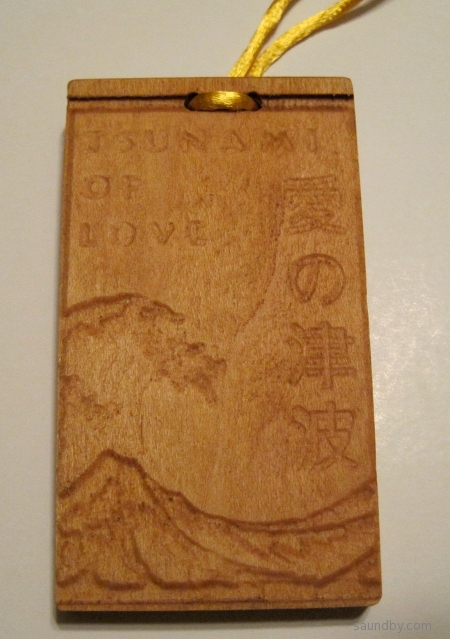
Tohoku Rememberance Tablet: Tsunami of Love in Kanji/Hirigana and English.
This tablet is larger than the others, measuring 2 x 3.5 inches (5 by 9 cm). The detail is far more striking in person than in this photo where the light from overhead washes it out.

There were some other designs that I'll try to get decent photos of soon.

Unfortunately, we weren't able to sell all of these tablets, I still have many left. If you're interested, drop me an email. I have instances of all the above plus a couple of other designs available. And it'll still benefit Japan--that's what these were made for.

Making the Tohoku Remembrances

These were made using the image-to-gcode converter included with EMC2. It's got some serious quirks to its behavior I had to overcome. When I originally set out to make these, I had two ways I could do it. I considered writing my own gcode programs by hand, and using the image converter.

I decided to go with the image converter because I thought it would allow me to make more different designs faster than writing my own programs by hand. Unfortunately, I was wrong. The time I spent learning the quirks of the image converter, with what sort of feature depth I would get, how much of a border around the image, and so on was far, far more than I expected. It would have been far more productive to hand-code the simple designs I ended up with.

My original ideas were more involved, more like the "Tsunami of Love" design, above, which was carved last of all at about midnight before the con. On each iteration I ended up simplifying my designs while trying to get the sort of features I wanted in the carving. I wanted to have the Kanji characters carved into the wood, originally, but I couldn't control the way the software managed the depth and width of the lines when doing this. The Kanji would end up barely visible, and the English characters were unreadable.

A CNC Success, in a Way
I took advantage of this project as an initial test of my ability to do some small-scale production with my new CNC. As a fundraiser, I have to say it didn't work out so well, but as a first go at some small-scale, simple production it was a success--barely.

My decision to rely on someone else's software that I don't entirely understand was a real weak point, but I still managed to turn out a decent number of pieces of work before the con. The investment of time into each one was over double what I originally expected. Still, I got them done within the time margin I provided for this project. Barely.

I'm happy with the results, particularly the Tsunami of Love item, and think I could go on to make some better stuff. Though I clearly need to work on my toolchain. In the future I need to have a tool at hand that I'm familiar with that will produce better results than the free image-to-gcode converter. And I need to have something that's more powerful than hand-written gcode programs for all but the simplest designs.

I've learned a lot over the past week, both about myself and my CNC machine. Now I'm ready for the next step.

Friday, May 6, 2011

What I Learned with My CNC Machine Today

I'm in the second day of a one day project today. Hopefully I'll finish it on Day 3.

But, at each step I'm learning new and useful things.

Yesterday I learned:


  1. There's a point where you need to stop writing gcode by hand, and use CAD/CAM.

  2. Doing tool compensation by hand is a real bear.

  3. Don't think of designs that are too much more elaborate than what you've actually made before.


Today's Lessons:


  1. When your test piece is MDF and your work piece is real wood, there are going to be differences.

  2. Grain and cutting direction matter more when using a CNC than when you route by hand, where you make all sorts of little compensations that you don't even notice.

  3. Just because this piece looks like the last piece you cut doesn't mean that it really is, even if it's a piece off the same stock. This can be really important when you're clamping your work down.


Nonetheless, I managed to avoid anything worse than some minor marring of the surface of one work piece. It's still usable for the project.

So far, I've succeeded at using the CNC as a really complicated and finicky power planer. Unlike the first time I used a power planer, it did not throw a piece of wood across the shop at barely subsonic velocities. One piece came a bit loose in the clamp is all. I shut down the machine in time, re-clamped it, and picked up where I left off.

Wednesday, May 4, 2011

First Attempt at Engraving an IC with my CNC

I decided to try doing a smaller, more precise job with my microCarve A4 CNC today. I took some of my GCode program from yesterday, scaled it down (fortunately I provided variables to do all that automatically for me) and added a chip number in characters that I hoped would show with the bit I'm using.

Here's what I got:

CNC Engraved IC. The bit isn't quite sharp enough for the level of detail.
My first shot at engraving an IC top. It's not really an 8085 microprocessor, it's a dead ROM I happened to have hanging around.


The cut widths are about 35 thousandths. Too large for the level of detail in the smaller key pattern. The single large key above is scaled three times larger than the smaller keys. The base leg length for the small keys (the smallest segment size) is 25 thousandths. So it's easy to see why it didn't quite come out.

Still, the accuracy would have been plenty good, if I'd had a sharp enough bit.

Onward and upward! :)

Learning GCode with EMC2

I'm spending a lot of time with my new microCarve A4 CNC router this week. My first couple of items were made using a handy image to gcode converter that's built into the EMC2 control software I'm using.

But the image converter simply treats the image as a depth map which is cut by raster-scanning with the cutting head. For the designs I used, this was slow, and produced rougher results than would be produced using vector cuts.

So I looked at a couple of approaches to improve things. One is using CAD software that works well with a CAM package to covert the CAD design into machine control instructions to cut out the CAD shapes. The other is to go straight to writing my own machine control programs by hand. I know that I'll want to have both methods in my toolkit, but which to use first?

After a bit of back and forth yesterday morning, I decided to start with programming by hand first. So I dove into the EMC2 documentation for gcode, the programming language more properly called RS-274-NGC. What a catchy name, eh? You can bet that the folks who picked programming language names like "python" and "Java" are kicking themselves after seeing how "RS-274-NGC" rolls off the tongue.

Results of my first gcode program on my microCarve A4 CNC.
Results of My First GCode Program.

Well, the EMC2 site has a link for a gcode tutorial, but what's there is...not much. Maybe I'll pitch in, since that's what wikis are for, right? The I went an read the EMC2 documentation, which has the standard cart-before-horse format of discussing details before generalities. Then I found the excellent LumenLabs GCode Tutorial. Much better!

I read some bits, scanned others, then hit the keyboard on my CNC control system. It's an old Athlon 800 with 768MB of RAM loaded up with the EMC2 LiveCD install for Ubuntu Hardy Heron, with EMC2 upgraded to the current version after install.

I fired up EMC2 with the SIM-Axis configuration for developing the gcode. I've got three different configurations of EMC2 on my desktop. I've got the SIM-Axis setup, and two different configurations for my microCarve A4, each with different origins for the axes.

I used gedit to create an initial gcode file, then opened it in EMC2. The gcode preview window is great. Whenever I edited the gcode file and saved, I'd click the reload button in EMC2 and immediately see the changes. Likewise, the error messages were good enough to let me find my problems, though the problems were usually typos rather than what was reported.

I used iterative development, of course. No sense writing too much code before finding out that I didn't understand some element of syntax. I started with initializing the mode settings, lifting the head to a safe traversal height, traversing to a point in space, then returning to machine zero. After fixing a couple of problems, I got what I wanted. Then I added a few additional move commands, and got the simulated CNC to follow them. At that point I could see that things would get out of hand pretty quick if I didn't learn some basic flow control.

So I read up on subroutines in gcode. I laid out a simple key pattern on graph paper, and wrote the necessary routines. That's the border you see in the picture above. That was the easy part. It's all straight lines.

Next was curves. I read up on G2 and G3. I hadn't thought about the ability to shift the depth of cut across the curve when I started reading, but by the time I was done I was thinking, "Hmmm, if I vary the depth of the cut with a V groove bit, I can vary the width of the cut just as I would vary the width of a line with a calligraphy pen."

So I broke out a fresh sheet of graph paper, and started drawing some letters. Well, it took me about three times as long to lay out the letters as it took me to lay out the key pattern, but I managed that. Not only that, but I set things up with scaling factors and variable settings that allow me to easily scale and move the letters.

Results
The results you see above are what I got from the first "live" run of my first gcode program. The cuts are a bit deeper than I'd like, and the 90 degree bit I'm using right now doesn't help. Also, the cutting was a bit fast for the plywood, causing the wood to be frayed on the cross-grain cuts. Still, the varying of "line weight" on the letters turned out well. Overall I'm happy with it, and the defects should be easy to fix when I run it again. I'm planning on building a complete alphabet for this font and throwing it into a file for later use.

Monday, May 2, 2011

microCarve A4 CNC First Cut Complete!

I got a router mounted on my microCarve A4 CNC machine this weekend. The router I'm using is an inexpensive 1/4" router from Harbor Freight. It's mounted on a base plate I made out of 3/4" plywood with a pair of muffler clamps holding the body of the router:

Harbor Freight drillmaster trim router on microCarve A4 CNC


I've got two bands wrapped around the body of the router cut out of a bicycle inner tube. They help mate up the muffler clamps to the router body. I was expecting to drill and tap a hole into the router for a screw through the base plate, but with the rubber straps everything is very firm and tight.

Today I spent some time "cutting air" to make sure the tool would run properly before I put a bit in. I had to invert the Z and Y axes in the setup I was using as it turned out. Then I tested twice more, once again with no bit or wood, then again with a bit and wood in the machine, but the Z axis set high enough the bit of the router wouldn't quite reach the wood.

Everything looked good, so I made my first cut:

saundby.com logo cut using micrCarve A4 CNC router.

Closer look at first cut made with microCarve A4 CNC.

Close-up of saundby.com logo cut into wood using microCarve A4 CNC router.


The material is some plywood I recovered from an old failed project. As you can see, it wasn't mounted completely flat. The top piece is held by some screws that hold it from underneath.

The G-Code was a raster pattern generated by an image-to-gcode converter that comes with the EMC2 software I'm using. That's why the bottoms of the letters look kinda scrappy, if they'd been cut continuously rather than raster-cut, they'd probably look a lot better.

The bit I used is a 1/2" 90 degree bit, I don't have any really nice bits yet. Now that I've got the machine actually cutting things out, I can work on refinements.

The depth of cut is 1/8".

Now I'm looking forward to getting some better bits, getting my CAM software in order, and so on.

Edit:

Had one more go with what I've got on hand this afternoon. It's a little more ambitious. Here you go:
CNC router cut of saundby.com surrounded by a key pattern.

Friday, April 8, 2011

microCarve A4 CNC Assembly Complete!

I finished my motor controller box day before yesterday, as described in Gecko G540 Power Up! as I build my microCarve A4 CNC router. Just take a look at the past several articles in my archive for more background and pictures of the A4.

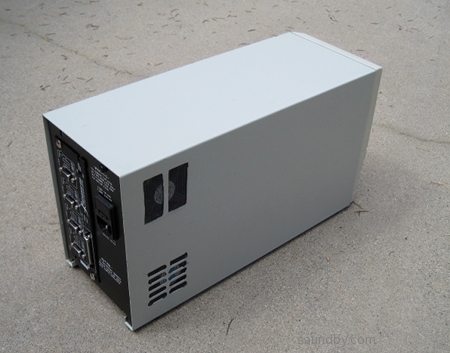
Gecko G540 Motor Controller Enclosure made from UPS, back
Completed Controller Box with Improved Fan Cutouts


Gecko G540 Motor Controller Enclosure made from UPS, front
Front with Big Red Switch and Power Light. Needs personalized stickers.


Microcarve A4 CNC router fully assembled without stepper motors
Completed MicroCarve A4 without Motors.


MicroCarve A4 CNC router with stepper motors attached, ready for testing.
Completed MicroCarve A4 CNC with stepper motors in place.


Tomorrow I start testing without a spindle. If all goes well, I'll start assembling a spindle mount.

More at: my CNCZone Build Thread

Sunday, April 3, 2011

MicroCarve A4 CNC Build Progress: Driver Enclosure

I'm getting closer to having a working CNC mill. I've been taking long as necessary to get the job done right the first time as much as possible, and to put on some polish at the outset.

My current work is to convert an old UPS into the power supply and motor driver enclosure for my CNC mill.

I started with this:

Empty Emerson UPS Case

And cut the back panel to hold my Gecko G540 motor controller like this:

Gecko G540 Panel Mount


I go into more detail on these steps in an earlier article.

One of the problems with this enclosure is the airflow. I want to make sure there's plenty of it for the current electronics. I got another metal nibbler and made some cut outs this morning for the power supply:

Cutouts for power supply airflow.
I didn't worry about cosmetics here, I just wanted to get on with the job. As long as I won't cut myself, I don't care how the cutouts look.


Cutouts for power supply airflow.
You can see that the cutouts line up well with the power supply vents.


Test fit of power supply to check airflow.
There's room for some airflow around the power supply inside the cabinet.


I wanted to take advantage of the big red power switch the original UPS had, so I chopped of the section of the original PCB with the switch, then mounted it on the original mounting hardware with some minor mods to make it stay in place without the rest of the board.

Chopped off PCB with switch.


Original Switch Specifications: 125V, 7.5A
The original switch's specs are good enough to wire it directly into the AC power line for the new circuit.


I thought I might have to use the switch to pull a relay on the AC line for the power supply, but as it turns out it's adequate for passing the AC directly. Whew! That saved some work.

AC Wiring of DC Power Supply for CNC
Finished AC Wiring


Unit tested for DC Power Output, Multimeter shows 48.1VDC
Power On, Looking Good!


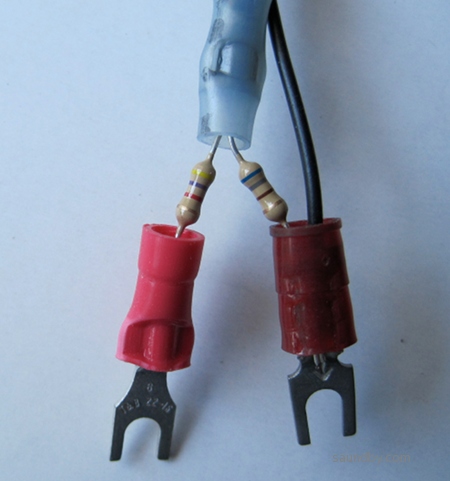
Then I wanted to have a power indication LED. I made up a resistor divider both to feed a lower voltage to the LED than the power supply's 48V nominal output, and to limit current to the LED. I planned on 6V at about 10mA, and made a divider. The original two-color LED didn't light up very bright at 10mA (I should have built the divider for 20mA), so I put in a red LED that's daylight visible at 10mA.

A pair of resistors on spade lugs, 4700 and 690 ohms.
The divider/current limiter.


A red power LED under shrinkwrap hooked to a light pipe in the CNC power supply cabinet.
The new red LED, held up to the light pipe with shrink wrap so I can see how bright it'll be. I later removed the unshrunken shrink wrap, hot-glued the LED to the PCB, and it fits up to the light pipe inside the cabinet perfectly.


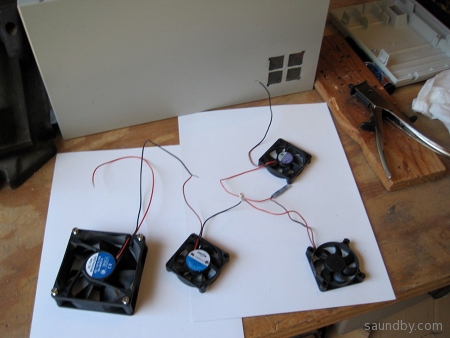
My last item on this cabinet will be finished tomorrow. Since the power supply puts out 48V and all my available fans are 12V, I put four fans in series. I'll have two fans drawing air in from the sides of the cabinet across the back of the G540. A third fan will exhaust air out the front of the cabinet. The fourth will try to stay out of the way. I marked out a place for the last fan to draw air into the cabinet from below the Gecko, but didn't cut it. If it gets warm inside the case while I'm testing it with motors attached and driving a CNC table around, I'll put in the hole for the fourth fan.

Four 12V fans wired in series, and one side of the cabinet with enlarged air vents.
The fans, and an enlarged air vent for one of the fans in the side of the cabinet cover.

When I'm not working out in the shop, I'm personalizing my microCarve A4's paint job a little:
microCarve A4 CNC side panels, one is as original, one has the logo painted in with Harvest Gold paint.

Friday, April 1, 2011

Microcarve A4 CNC Build-Up Progress:Controls

I'm the proud new owner of a microCarve A4 CNC machine. I'm still getting it built up--I got my motors and motor driver three days ago and the A4 just arrived yesterday.

Yesterday and today I was working on an enclosure for my Gecko G540 driver and the power supply for it and the motors. After looking around at what I had on hand, I decided to "repurpose" an old UPS's enclosure:

Old Emerson UPS, repurposed as a CNC driver enclosure.
The Enclosure, after the guts were removed.

Back Plate of the enclosure, before being cut for the Gecko G540.
The original back plate.

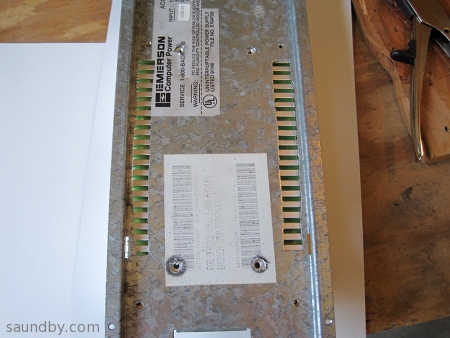
Inside the UPS Backplate
And the Inside

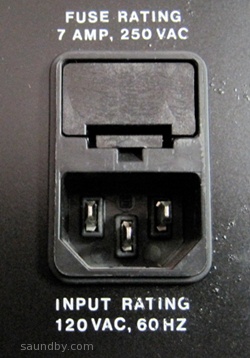
Fused Mains Plug for the UPS.
A Fused Mains Plug--Very Handy!

Gecko G540 Laid on the Plate
Here's where the Gecko will fit, more or less.


My original plan was just to use a nibbler, starting at the hole for the phone jack for the UPS. I scribed my cut lines, then started cutting with the nibbler. About an inch into the work, the nibbler broke. Did I mention that I'd modified this nibbler in the past to cut plastic? I made it so that its jaw would open wider. This weakened the nibbler a bit, but hey, who needs strength for cutting plastic?

Then I went and cut some metal with it. It wasn't up to that job any more.

I spent much of the day yesterday trying to buy a new nibbler. I went to five different places nearby. Four of those places had never heard of a nibbler, at least three seemed to think I was making it up. The last had heard of nibblers, but they didn't have any.

So I came back home and got to work with other tools. I finished the job about noon today. It was a lot more work, but the results are decent, even if they're not quite as clean as I can get with a nibbler. Plus it made a lot of steel filings. Dremel, cutoff wheels, cold chisel, files, grinding stone and hammer were among the tools used.

Gecko 540 4-axis driver mounted in plate
The Gecko, in its new home.

Back of Gecko G540 mounted in plate
The Gecko from the back.


Since I had to take care of all those filings, I did a pretty thorough cleaning of my bench so that I'd have a place to assemble the A4 without any further delays. My next image reveals wood which seldom sees the light of day:

cleared workbench top
The top of my bench. Stains are just Tapmatic fluid that hasn't dried yet.


It looks like it's outside because of the window. In fact, it's in a second garage that was added outside the house's original garage. The original garage's windows were just left in place when the prior owners added the second garage.