Showing posts with label Teaching Computers. Show all posts

Monday, May 5, 2014

Kerbal Space Program + DayZ = ...Firefly?

Beside DayZ, I've recently started playing Kerbal Space Program. It's a game where you build rockets and send little green men off into space to land on their Mün and other planets in their little solar system. The physics engine lets it be moderately realistic in its behavior, enough for a game anyway. The build system is simple enough that a mere mortal can deal with it, or a rocket person who doesn't want to deal with lots of niggling details because nobody is paying them to do this.

I wrung the heck out of the demo version before I bought the full version. There are some significant differences between the two, aside from the obvious lack of features. For one thing, the simulation in the demo is more forgiving than the one in the full game. The full game does have the advantage that the simulation is more "fine grained" than the demo, though. This boils down to meaning that you have to pay more attention to how you build and fly your rockets in the full version, especially the large ones. The demo is more "gamey", in that you can slap together almost anything and get it into orbit. The full version requires a bit more thought and testing.

Recapitulating History

Since the demo's parts are similar to early NASA parts, I decided to get started by just putting together some simple tests to learn about building rockets in KSP.

My first was a capsule with parachute recovery (there's no other capsule or recovery system in the demo, so every flight is a "manned" flight.) I put this on top of a stack separator and a short tank with a large engine on the back and some fins for a bit of stability. I was worried that it would be too short to be dynamically stable along its length, that it would pitch or yaw wildly, but I decided to throw caution to the winds and launch it just to go through the process of getting something off the ground.

The real thing version of where I started in KSP

In spite of a lack of any control system, it flew just fine. It was about a 10 minute flight, surprisingly long for the amount of propellant, I thought. This basic configuration, sans fins, became the core of my next step--build a capsule and service module style combination that I could put on top of different boosters.

I added a dynamic control wheel system and some RCS jets to fill it out. Later, when I tried to use the RCS jets I learned that I needed to add RCS propellant tankage, too. It added a lot of weight, but at the end I had a solid core to build around for an orbital system.

This went on top of another stage separator, a taller tank, and another large engine for another suborbital test.

Mercury Redstone Suborbital Launch

That flight also went well. The fins of the first flight had been removed, and I decided to see how much stability I got with just the reaction wheel system and no fins on the booster. One thing that I missed immediately from the construction information was the lack of a display of the center of pressure on the craft. A basic measure of stability is where the CP sits with respect to the center of gravity (CG) of the craft. CP needs to be behind CG, and the greater the distance between them then generally the more stable the craft will be in the face of perturbations.

The other thing I missed was the lack of a sequencer to control the craft. It's a game, they assume that you want to "fly" the craft. I'm an instrumentation and controls engineer. I expect to build a solid program to get the craft to where I want it, then sit back and let it do its work. A sequencer is sort of a computer that looks at inputs from control instrumentation--acceleration, altitude, etc.--then does certain things at certain times--adjust valve settings, thrust vectoring positions, engine cutoff, etc.

That way you can let the sequencer manage engine throttling on the basis of altitude or velocity, engine shutdown on the basis of same, staging, and firing of the new stage (through that stage's control system.)

In KSP, there are a sequence of events set up linearly that are activated by the space bar. Engine activation (throttling happens elsewhere), stage separation, parachute activation (deployment is controlled by the parachute itself, which deploys as a drogue at high altitude then opens fully at about 500m.)

It more or less works, but having to "fly" each craft gets tedious for me. I'm of the school of aerospace engineer that feels the job is done when the vehicle gets off the ground. Then you just sit back and chew your nails till your bit completes its mission sequence.

Ascent to Orbit

The next step was adding some more power to the booster to get enough velocity for orbit. Given the sort of downrange distance I got with my suborbital vehicles (I flew 3 suborbital flights to different altitudes and downrange distances to get a feel for the craft and the controls), it wasn't hard to get a "seat of the pants" feel for what it would take to stretch the craft for orbital flight. Since the game doesn't give you much in the way of real numbers, that's about all you'll get. The "empirical method" rules here. But since it's just a game, it's not a surprise or much of a problem--I'm just used to having numbers for planning.

I added a second stage between my service module stack and my first stage stack, then added a couple of strap-on boosters to the first stage. Since I hadn't sorted out the sequencing of engines on the first launch, the strap-ons ended up being my first stage, rather than a "stage 0", with the core stage only firing after they burned out and were dropped.

I'd already noticed that the game's world behaves pretty much like our own world. It rotates the same direction, for example, so pitching over to the east would be the most efficient path to orbit. I fired up the booster--fortunately the strap-on boosters had enough thrust to get the whole stack of the ground--rode them up to a decent altitude, staged, then started tipping over to the east.

I took it slow on the tipping, since the whole rocket was so heavy that I wanted to make sure I got enough altitude. As it was, I rode the core stage up, staged, then continued the pitch-over to the east under power the full time. I know it's probably more proper to get the apogee high enough, shut down, then fire up again for a circularization burn at apogee, but I wasn't sweating that at this point.

Having only limited data on the main screen meant popping back and forth between the main screen and the map screen to check my trajectory. I wasn't sure if the game world had the same acceleration due to gravity as Earth, so I didn't know how much I could tell by my altitude and ground-relative velocity (and it bothered me that I didn't have a radar altimeter or some such to know my distance above ground, too. But that really bit me later, when I got to the Mün.)

I did manage to set up a decent orbit, and, yes, with a plenitude of propellant. I would be able to go home again. I played around with raising and lowering the orbit.

And here's where KSP gets really cool.

The immediate display of effects of acceleration on trajectory in the map window is really neat. It's easy to see what happens when you accelerate at different points of your orbit. It also gives players the chance to get stuck in orbit, revealing a bit of physics about energy use. And, even more significantly, changing orbital inclination.

One of the things that irks me is the common perception of "space" being like one big room, where everything that's "in space" is together. It's often presented this way in the simplified presentation of general media, and those people who don't have any direct contact with space work just don't know any better. They see the Hubble Space Telescope as hanging right off the front porch of the ISS, with all the spy satellites, weather satellites, commsats, etc, all right there in a row.

Now, every time I hear someone ask why the astronauts at the ISS can't just grab the Hubble and fix it, or why a Shuttle sent to repair a Hubble can't just ditch out to the ISS if something goes wrong, I'll wish that I could sit them down with a copy of KSP with objects in the respective orbits and let them find out through personal (non-lethal) experience why this doesn't work.

Back to my orbit. I didn't know what my parachute could deal with in the way of incoming velocity, so I decided not to come in from the higher orbit (about 400km), but returned to a lower orbit of about 90km before doing a re-entry burn.

The parachute held up fine. In fact, I learned that the system could deal with returning from orbits beyond 500km, but it was having trouble reducing velocity enough from around 750km. I didn't pancake any spacecraft, but I don't think I'd want to try a direct re-entry from 1000km. I don't know if the game engine does enough simulation to cause the heat shield on the capsule to fail, either. In general, I didn't push it.

I flew several more orbital flights, with minor tweaks to my vehicle design (like having the core booster fire at launch along with the strap-ons). I used different techniques for getting to orbit, in one case going straight up until I had an apogee of 500km, shutting down, then tipping to the east and firing to circularize at apogee. It worked just fine. I also did the routine of going a bit to the east, raising my apogee to about 90km, shutting down then firing a second burn at apogee to circularize. It may have been more fuel efficient than going straight up before circularizing, but it wasn't as easy to fly.

I picked 90km as my altitude just because that's the simulated altitude I've used on numerous test programs to test equipment in space-like conditions of atmospheric pressure (or lack thereof.) I've used other targets as well, like 75km, but I went with 90 because I wanted a little room. And, I was glad to see that KSP seems to pretty well mimic Earth so that I can use familiar numbers like these.

Final Thoughts

KSP should be played in schools, for credit. I would like to think that it can be used without taking away the fun, and that kids could be induced to set objectives for themselves similar to actual space program objectives (rather than just blowing up little green Kerbal people or ramming them into the ground at supersonic velocities.) The game has tremendous potential for teaching, in a "seat of the pants" way, information about ballistics and orbital mechanics. Then, when these subjects are encountered in math and physics classes, the concepts will already be familiar.

While on Facebook, there was a little game someone started of asking what you'd get if you combined the two computer games you were playing presently. In my case it was DayZ and KSP. I figure mixing zombie apocalypse with rickety build it yourself interplanetary space flight gives something like a Firefly game (Reavers=zombies in this case, in case that's not obvious.)

Thursday, November 14, 2013

Ted Nelson's Computer Lib 40th Anniversary to be Honored at Chapman University

I forgot to mention an additional item in my post on meeting Ted Nelson. Chapman University will be honoring the 40th anniversary of the publication of Computer Lib on April 24th-26th, 2014, presumably at Chapman's campus in Orange, California.

Here are images of the flyer (once again, apologies for the fold. I put it in my hip pocket since I wasn't toting anything else to carry things at the time.)


Wednesday, November 13, 2013

Lee Felsenstein at Homebrew Computer Club Reunion

Lee was the MC at the main part of the club meetings back in the day, and he reprised that role on the night of the HCC reunion. He was also the designer of the computer in that day that I most desired, the Sol 20 Computer. I loved that system--the look, the keyboard, its operation.

Image by cellanr
There were just two things you wanted to know about the Sol to make life happier: Build the fully expanded system right at the outset. Opening up the heart of the system to expand it later was a major PITA. The other? Use someone else's disk subsystem. Though with the information available today a Helios disk subsystem could probably be made to work.

I still have the sales brochures for the Sol 20. I pull them out every now and then to drool over them again. Part of it is nostalgia, but part of it is the great design itself. Actual Sol 20s sell for more than I can afford, but perhaps I'll build myself a look-alike system from sheet metal and walnut wood sometime, anyway, and print up a nice black name badge.

I still have an Osborne 1 computer. This one is one I got only relatively recently. It is pretty well maxed out on upgrades (disk upgrades, video upgrades, etc.) and is a pleasure to use. It's not as pretty as a Sol, but I enjoy showing it off in current day computer classes. The kids love it--especially the floppy disk drives and the tiny screen. But...they get hooked on Zork.

Lee Felsenstein Today

In our conversation last Monday, Lee showed me a project he's working on today as an educational tool. It's a programmable logic simulator, targeted at middle school students. What Lee showed me was a pair of printed circuit boards that have captive fasteners to clamp them together around a plastic matrix. The matrix holds surface mount diodes, which the students can place into the matrix to program it. In essence, it's a 16 by 8 programmable logic array that is programmed through physically locating the diodes.

OK, I know that sounds totally abstruse to many of you, so let me tell you what makes this a great idea, and why your middle schooler ought to know about this stuff even if you've gotten through life without having to so far (assuming you don't know already).

The core of computers are built out of logic circuits. The memories feed the logic circuits with data (in current designs--it doesn't have to be that way though it's presently the assumption), in essence, the programmable logic is the complement to the memory. This analogy of the logic and memories being complementary components of a computer holds on many levels. It's possible to build logic out of memories--I've done it--but it's not efficient.

Initial education in logic circuits can be accomplished with a simple breadboard and some logic chips. A few AND chips, OR chips, NAND chips, inverters, and so on. Add some resistors and LEDs and the kids are off and running. For a little while. Once they master this, and understand what's going on, they immediately start expanding their ideas.

Then a problem hits. More chips and more wiring between them mean more complexity, and more difficulty in realizing their ideas.

At this point, it's possible to introduce them to programmable logic devices. Teach them that the logic functions they had in the ICs live inside the PLDs, and that they can program the devices rather than run wires. The problem is that this is a big, big jump up in abstraction level, especially for a kid in the middle school age bracket (which is the perfect age to introduce this stuff, which I'll go into later.)

Whereas Lee's invention maintains a physical element. The programming is accomplished by manually placing diodes into a matrix, rather than typing characters on a screen then punching the 'program' button to dump it to a Flash PLD. This keeps it from getting too abstract, encourages experimentation, and maintains the hand-on element that's necessary for students in the 9-13 years age range.

Building Blocks of Electronics

Electronic logic is building blocks. Your kids play with building blocks, right? They start with simple structures to learn how to build more complex structures. Before long, they can use every single piece they've got building large, complex structures. Once the individual blocks and a few simple ways of interconnecting them are understood, they can take off and make great big projects that reach to the ceiling.

It's the same with electronic logic. It's a collection of simple building blocks. The problem is, the complexity of assembly is a little greater. Enough that once you get past a certain level (I'd say 20-30 ICs), it gets progressively more difficult to implement your ideas. The ideas out-race the ability to construct.

This shouldn't be an obstacle. The ideas should be allowed to continue to grow, without removing the physical aspects that make the activity interesting.

The Lee Felsenstein Magic

Lee has hit a sweet spot here. With all the excitement about the Raspberry Pi (which I will save my criticisms of as an educational tool for a future article), Lee's project should have that sort of excitement going for it. This is about students building their own processor. This knowledge is important. This is what the people who caused the microprocessor revolution used to cause the revolution in our lives. This is the knowledge that put a CPU in your telephone, your oven, and your iron. This is what tunes your radio.

Assembling a processor from random logic is a huge project. Yes, people still do that (I've even build a very, very simple one from racks of relays, myself, under cover of testing those relay racks and their support wiring after installation.) Building your own processor with a PLD is a lot easier, once you understand the building blocks.

Lee explains himself well on his project page. Have a look. I will be following the progress of the project.

And I'm really glad I got a chance to meet up with Lee again after all these years. He was one of my mentors and inspirations in my youth, just as he describes those who mentored him. It seems to be a common thread that those of us getting older want to assist the younger generation just as we were assisted when getting started in technical pursuits (as hobbies--the jobs came later.)

And if you're raising a kid--don't just foist off software on them as something to play and "learn" with. Software isn't reality. I've designed any number of computers on paper and in software, and then go on to build far fewer of them. Because software and paper aren't the real thing. The real thing has all sorts of little niggles and oddities that you'll never learn about in any way other than doing the real thing. Teach your kids to solder, use solderless breadboards, and use real components at all levels of complexity. Don't try to do too much at once, start with kits then move your way toward recreating circuits on breadboards then to soldering them on prototyping boards.

But do the real thing. Right alongside your other crafts projects. Because electronics is just as much a craft with some useful products as is crochet or embroidery (both of which I do) or quilt-making or sewing (which some of those close to me do). And most of all, have fun!

Monday, June 4, 2012

Parallax Propellor Quickstart Board

When I was at the Parallax Robotics Expo back in April, I picked up a P8X32A Quickstart Board. I've had my eye on the Propeller chip for a long time, I first heard of it before release. But to date, time spent on other things kept me from getting started with it.

Parallax P8X32A Quickstart Board, shown inside an Altoids Tin for scale.
The P8X32A Quickstart Board, in the obligatory Altoids tin for scale.
At the robotics expo Parallax was cutting some great deals on their products, however. And I figured that if I had something on hand it might make it a bit easier to take a first look at the Propeller. With the discounts they were giving at the show, I seriously considered the Propeller Starter Kit, which includes the Propeller Demo Board. But, since I had no idea how long it would be before I actually got a chance to use it, I decided that a smaller investment would be wiser. So I got a Quickstart board.

The Time Window Opens

Finally, last Friday afternoon, I had a chunk of time open up as a result of being too ill to make a prior commitment. (I can't help but think of how many important things in my life have happened because of time made available through being too sick to do what I was supposed to do, or because I was stranded somewhere without transportation.) The tiny box for the Quickstart board had been living next to one of my computer keyboards for over a month, so I didn't even have to go looking for it. There was a USB cable of the correct type sitting in the drawer next to me. So I started in.

To keep it simple I decided to start out with the Parallax programming environment, Propeller Tool on my Windows 7 machine. I expect to try out Brad's Spin Tool, the other major development tool for Propeller, on my Mac and Linux machines a bit later.

I was pleased to see that it installed everything, the driver for the USB interface chip on the Quickstart board, the IDE, and the serial terminal tool for the Propellor. It says it does that before you download and install, but I was a bit unsure of whether the Terminal program would actually be in there before I actually installed the program.

Once the software was installed, I started it up then plugged in the Quickstart board. I got a ding-dong from Windows telling me it saw the hardware. I was able to find a menu item to report what chip version the software saw, and it saw my chip. I didn't get the message I expected from the documentation at first, a dialog pop-up. That appeared later, the first time I tried to send a program to the board.

About that...

Parallax has a tutorial that runs you through the initial steps of programming the Quickstart board. Aside from the fact that to get to each of the several pages you follow a link from the product page (the pages aren't linked together--that is, when you get to the bottom of one page there's no link to the next one) there's another oversight on these pages as well.

The page gives a short, simple program, describes what it does, then goes on to a slightly more sophisticated program. It tells you about how the editor behaves. But it doesn't tell you how to actually get the code on the chip.

Now, I'm not exactly a first timer here. I looked at the menu and saw "Run" at the top of the screen. But when I chose that I got a list of items, none of which were clearly "compile and run". So I started selecting things at random. I also didn't know whether to expect a simulation environment to start, or how to select between a simulator and the real hardware. I scanned the tutorial web page up to the third program in it, and found no specific instructions.

This is one of those things of which Sherlock Holmes remarked, "the answer is perfectly obvious, once you know it." There is no simulation environment in the free tool, that costs extra (I wish Parallax could follow Atmel's example in providing it with the free tool, the first job I applied an AVR to happened because I was able to use the simulation tool to verify the software timings I needed). And the Run=>Compile Current=>Load EEPROM or Run=>Compile Current=>Load RAM would either have done enough to let me get what I wanted--the sample code running on the target hardware.

But that wasn't clear. I was doing a quick try it and see, so I hadn't spent time with the chip's datasheet yet to learn about how it loads and runs software, what facilities it has for storage, what the implications are of loading EEPROM vs. loading RAM (I didn't even know if they were both program storage, for all I knew one was program storage and the other was for loading an initial state for testing.)

So I was a bit stymied until I just decided to try things at random and see what happened.

At the bottom of the tutorial page is a short table describing the shortcut keys and what they do. Below the actual step-by-step examples that omit instructions for how to compile and run the code. There they describe F10 and F11, for example, and the implications of each choice (RAM or EEPROM).

I managed to get the short initial program (which lights an LED) loaded and running. The LED lit up. There was much rejoicing.

Demo, Demo, Who's Got the Demo?

The next thing I started to wonder about was the demo that showed off the touchpads by lighting up the LEDs when the pads are touched. This hadn't appeared to be pre-loaded like demos often are on other processors. Nor did there appear to be anything obvious among the Propeller code that came with the IDE (another thing I fouond by spelunking, rather than as a result of documentation.) There were no projects with names like "Quickstart Board Demo" or "Touchpad Demo" or whatever. Nearly all the demos appeared to be for hardware I didn't have.

At first I went back to the Quickstart tutorials on the web. I did searches for the demo on the Parallax website and through Google, but the closest I came up with was modified versions of the demo listed in a forum thread. I did find the demo later, but it was only by going back and looking for it time after time that I finally located it today, my fourth day trying, here, on the Parallax Semiconductor Quickstart product page, not on the Propeller downloads page or the Parallax store product page, where there are lots of other downloads but not this one. The location is so subtle, that even after I found it earlier today it just took me five minutes of backtracking to find the right page over again. It's on the linked page, at the end of the list of downloads at the bottom. Direct Link to P8X32A Quickstart LED-Touchpad Demo Software Download

Well, back to last Friday. The demo was interesting to me, but while I was looking for it I came across information about the video capabilities of the Propeller. Frankly, while I'd heard the Propeller did video I just figured it was something along the lines of bit-bashed video like what I've done with several other microcontrollers. I've even generated video from a little Atmel AVR ATTiny12 with nothing more than a software loop and a resistor divider-no fancy shift registers or anything.

Needless to say, it was pretty simple video. No colorburst, no color. But it got some data out of the chip on a two-pin interface nicely (three levels are needed for even black and white video to get the sync signals for timing in addition to the black and white pixel data.)

The Propeller goes way, way beyond this. It's got both NTSC and VGA signal generation hardware on board. And it's not just single bit video, either. It can generate full color at a number of resolutions. This I had to try. But my little Quickstart board doesn't have a video output on it. I looked at the Propeller Demo Board and saw that it had a video interface. It was just a 3-resistor DAC and an RCA jack, so I decided to make one.
Three resistors on an IDC header to an RCA jack, a fourth square pin on a wire provides a ground. Simple quick and dirty video interface for the P8X32A Quickstart board.
It doesn't get much quicker and dirtier. It took longer to pull the parts than to assemble.
Five minutes later, I had my own video interface. (Note: the accepted way to do this if you're not buying your Quickstart board at a Parallax event is to go to Gadget Gangster and buy your Quickstart board with a free QuickProto board, which includes the video interface along with lots of other cool bits that make the Quickstart board so much more ready-to-go.)

At first, the video was pretty wonky. Then I realized I had the resistor that's supposed to go to P13 going to P15. Once I fixed that, it was better, but still not good. The graphics demo ran OK, but one of the text demos wouldn't even sync properly, the other had poor contrast. The thought crossed my mind that either the timing in the Propeller wasn't much better than my old Atari Pong or that the provided 5MHz crystal meant that the timing wasn't right on. But I've learned the hard way, time and time again, to suspect user error first.

I took another look at my too-quick and too-dirty video interface and found that the resistors that were supposed to go between P12 and P13 were swapped. A moment later I had pulled the pins from the plastic IDC header and moved them to the correct positions. This is why doing electronics when you're under the weather is not always a good idea. Fortunately this wasn't a mistake that'd let the smoke out.

Once that was done, the video looked great on all the demos. I then had to make a batter adapter so that I could try it out on the big screen TV in my living room. A quad-AA battery pack came to hand quickly enough, one of the ones with the 9V snap connector on the end. Then I soldered a 9V snap connector pigtail to another IDC header and spliced in an IDC socket pigtail. That way I'd still have a place to put my ground pin from the Q&D video interface without soldering it to the battery connector. As a final refinement, I put a slider switch in line on the positive battery wire to act as a power switch.

Once that and the video adapter were plugged into the Quickstart board, I took it out to the living room and hooked up to a free composite video input. It looked great.

I spent the rest of my time mucking around with the code of the various NTSC video demos. Spin is a really easy language to learn, if you've got any programming experience it'll come easily. It's even simple enough I could easily see teaching it as a first language to new programmers (with a Propellor board on hand, of course, to get the full hardware + software experience!)

Cleaning Up Shop
As mentioned, I have now been playing with my new board for four days. In spite of a couple of minor snags (figuring out what to choose to compile and run my programs, finding the demo for the Quickstart board itself) it's been a very rewarding use of my time. I can see now why people who've been raving about this controller for five or six years are excited about it.

After my first night playing with the board, I learned while reading the Parallax forums that the Propeller could also do RF-modulated video. That's what I spent mid-day Saturday playing with. I put rabbit ears on my big screen (talk about incongruity!) and a pair of jumpers on the RCA jack and managed to receive video from the Propeller from about 25 feet away. What worked even better was an LCD handheld television left over from the analog TV transmission days. I was able to get as far as 10 feet from my back door, a total distance of about 50 feet, and still get good reception. I don't think it's making it as far as the neighbor's house, though (fortunately.)

Yesterday I buckled down to some more structured learning of the Spin language, reading the Propeller Manual and Datasheet, and so on. Today I'm continuing that, working my way through tutorials and such. I also took a look in the goodie bag I filled at the Free tables at the Robotics Expo--there are a couple of Propeller boards in there that I can't wait to find a use for now.

Monday, May 14, 2012

Paizo Pathfinder Lite PDFs

Paizo has regularly released inexpensive PDFs of the Pathfinder rule books as a convenient addition to their hardcopy versions. Of the various major game companies, Paizo has my favorite pricing policy on PDFs. They're cheap. Which makes it a lot easier to do what I like, which is have both the hard copy and the PDF. (Even better is the practice of some smaller publishers, like Jon Brazer Enterprises, where you get both hardcopy and PDF in one package deal!)

Pathfinder, the Vorpal d20 Rulebook

The PDFs for the Pathfinder books from Paizo had a problem that limited their utility, though. They have multiple layers with lots of vector art. This is great for getting the best image on any display or from any printer. It's a huge load of computation, though, if you just want to read the rule book on an e-reader or a laptop.

I originally bought the PDF of the Core Rulebook to be able to cut and paste items into my own adventures--little reminders for rules that I may not use often that would crop up, and other such things. The PDF did that job great. But when I went to put it on my Sony PRS-950 e-reader, so as to have a small, light copy of the rules where ever I went, it buried the poor e-reader's processor. Page turns took forever. It was nothing but frustration.

Halfling to fighter under huge stone: Get up, you big sissy!

Even the version of the rule book that has the chapters as separate files didn't help. The files are smaller, but the computational overhead was still just too much for my e-reader. Even when I threw it on my Eee PC (a "netbook" style laptop computer), it was just too slow to use. I was reduced to extracting the text from the PDF to rather ugly text files.

Lite PDFs

Fortunately, Paizo has now released Lite PDFs of the Pathfinder books.

I downloaded them this weekend, then tried them out on my e-reader and Eee PCs this morning. What a difference! They read smoothly and well, even on the Sony PRS-950's little processor (little by current standards--it's got far more power than my primary software development workstation from the '90s!)

I'm not the only one loving these new streamlined PDFs. Have a look:

The Iron Tavern Mini Review: Pathfinder Lite PDFs
The Earthen Ring comments on Pathfinder Lite PDFs
Paizo Messageboards: PFRPG Lite PDFs

Gaming with Death, fighter says to Death: If you say, Do you have any more twos one more time, I'm going to KILL you!

Saturday, April 14, 2012

Parallax Robot Expo

My daughter and I went to the Parallax Robot Expo today and had a great time. It's neat having an event like this only about 45 minutes from home. My daughter has a couple of BOE-Bot robots and a bunch of additional bits she enjoys working with. I'm into anything microprocessor or microcontroller, and I think Parallax is a neat company that makes great products.

We were a bit worried about the effects of the weather. We left home with snow falling and drove through a rainstorm on the way. When we got there it was only raining lightly. Even if it had been raining, everything was either under tents or inside. It wouldn't have been necessary to do more than duck across a few feet of open sky in any case.

As it happened, things only got better as the day went on.

We had a really good time checking out the various demos. They had one tent with activities, laptops set up with boards hooked up to them, where people could get their feet wet in programming the boards to blink lights, run servos, sound off on piezos, etc. We didn't check that out too closely since we can do that at home.

Alongside it was a "Learn to Solder" area with several tables. You get to build an S-2 Robot LED badge. Not an actual S-2 robot, mind you, but a little hang around your neck badge shaped like the Scribbler 2. It's got a 7 color LED on it, a switch, a battery, and some embedded logic. It's a neat little thing and it's entirely free.

I made one though I'm no newcomer to soldering. I had a very helpful young man making sure I prepped the parts properly and oriented them correctly. He was also able to answer my question about whether there was logic embedded in the printed circuit board.

The factory tour was also very nice. They've got some automation they're justifiably proud of. I'm surprised that it appears they actually use a CNC to make production parts. I'd have expected higher volume processes for them.

Also inside was a display and presentation area. They had various talks through the day by very approachable people with experience directly relevant to the attendees. It was interesting hearing them talk about their technical work and their work to develop their businesses. We weren't able to hear all the talks we would have liked.

Back outside there was a tent for vendors--the show prices on Parallax products were amazingly great and there were some other great vendors there, too. There was a show area for other companies, Panavise was among the companies showing there (IMO, yes, their products are worth every dime!)

Maxi Swag
One of the coolest things there, a real unexpected treat, was the Free Stuff tables. There were all sorts of free parts and boards and what I assume was discontinued product. I got a book on programming the SX microcontroller, a Javelin Stamp, some sort of Propellor board, and some other fun electronic "Junque Box" goodies, as did my daughter (I think I'll be showing her how to wire up a CCFL this weekend, there were packs of them on the tables.)

We both had a great time. My daughter got really excited and couldn't wait to get back home to her electronics. We picked up some great project books for her, cheap.

If you get a chance to go on Saturday, I recommend it highly.

Wednesday, November 9, 2011

Low Level Computer Teaching Options

We have a current discussion on the COSMAC Elf Discussion Group that centers on the idea of a small computer to teach low level computer concepts. Many of us in the group got our start with the COSMAC Elf as our first home computer. It is a small, simple, inexpensive computer. One of its finest points is that it is simple enough that a person of ordinary intelligence can understand how every part of it works, down to the lowest detail.

The place for a small teaching computer, as we're discussing it, lies somewhere between electronics and the standard non-computer science introductory computer programming class. It's a matter of teaching what the components in the system do, and how they do it. This becomes a model of what happens inside more powerful modern computers at larger scale. Such as in current desktops, laptops, tablets, and smartphones.

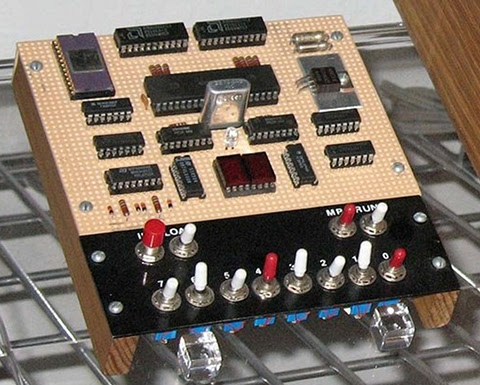
COSMAC Elf single-board computer with PIXIE video. A complete computer system in 1977 with only 13 integrated circuits!
The COSMAC Elf, this version includes video graphics.


Is anyone using something along the lines of a microprocessor trainer in the classroom today outside a college level EE class?

Personally I can see two general approaches to this, with several possible variations on the two themes. Let's look at them, then I'll go into Blue Sky mode to talk about what I sort of wish for.

Some Ways to Bring Computer Hardware into Class
One is to fake it entirely with present-day hardware. After all, if it's possible to do a complete chip-level simulation of an 8-bit processor in Javascript, it shouldn't be much of a stretch to simulate an entire simple 8-bit microcomputer in a program with the ability to "see" all the operations inside simulated on the screen.

The problem is that this still really fails to make what's being taught "real". To the students, it becomes just another show to watch--one with no particular interest to most of them.

The other approach is to use an actual old microcomputer in class, like the Elf, with the students handling the system, measuring voltages or using logic probes to "see" the signals in the computer. Something more sophisticated would be using chip clips with LEDs on the various lines as a sort of multi-line logic probe. (Here is a place where an Elf or other RCA1802-based system would shine. The 1802 is a fully static processor. It can run at clocks speeds from 0Hz on up to its maximum clock speed, with clock changes on the fly. I have literally clocked 1802 systems by hand by connecting and disconnecting the clock line to +5V and Ground lines, counting out machine cycles as displays show the status of various system lines. There are not a lot of computer systems that can do that!)

An annotated image of a COSMAC Elf computer, showing the location of CPU, memory, and other ICs.


Between these two lie many other options. One would be to have a hardware board that connects to a modern computer through a common interface, like USB, where some I/O devices could be visible controlled by the computer (via lights, motors, etc.) and with lines exposed that can safely be probed by the students.

Another would be using a more modern hardware platform, perhaps based on one or more microcontrollers that emulate the function of an older system, exposing such things as memory access, control signals, and so on to the students. The board could include displays and LEDs to show the status of the lines, internal pseudo-registers, and so on. The operation of the entire system, both inside and outside the simulated ICs, could be made available to the student's eyes.

Part of what needs definition is the acceptable limitations of the system. In my own case, I see such a system as being an introduction to low-level hardware operation and control of that operation through software.

Blue Sky Dreaming
If I could have what I wanted without any effort on my part or a significant amount of the school's money, here's what I'd like:

Step 1
I would want to introduce a basic system that's very similar to the original Elf of 1976.

It would have:
  • Toggle switch inputs (to associate signals with data and to help teach binary),

  • A binary LED display and a two-digit hexadecimal display,

  • Very limited memory (about 128 to 256 bytes)(to teach how much can be done in limited memory, and to limit the size of early programs to sane sizes.

  • Exposed memory and I/O lines, possibly with LED monitors

  • Extra monitors, like maybe dual color LEDs to show data direction on I/O ports, etc.

  • A simple machine language with whole-word mnemonics.

  • The ability to operate at extremely low clock speeds (0-100Hz) as well as higher speeds (1-10MHz or something like.)


Step 2
  • Hexadecimal Keyboard

  • 512B to 1024B of RAM

After the first few lessons, the toggle switches would get old and I'd want to introduce a hexadecimal keypad. This would teach hexadecimal, and continue the association of computer instructions with numeric values in the computer. Presumably the connection between signal levels and numbers has been made using toggle switches.

With the easier input technique, it'd be nice to add some more memory, up to something like 512 bytes to 1 kilobyte.

Step 3
  • Keyboard with instruction mnemonics and hex digits

  • Perhaps more memory, up to about 4K

Next, a keyboard would be attached. Perhaps writing software to interface the keyboard to the system would be one of the Step 2 projects. While I'd be tempted to use an ASCII keyboard, I think a raw matrix keyboard would teach more. On this keyboard, machine language instructions and hexadecimal numbers would be mapped to each key. This would again speed programming, and reduce errors. The simple machine language I envision has a particular addressing mode associated with each mnemonic, so there's still no assembling of code required.

Step 4: A larger step
Next, I'd move to a more abstract level. I believe that the activities prior to this point would teach low level operations well enough to take this jump and still be able to show the connection between the two.

For step 4, the computer would get:

  • More memory. Anywhere from 4K to 64K. Perhaps it would start at 4K and grow as the students hit the limitations of each memory size.

  • A terminal connection to a current generation computer for keyboard and display, or an encoded keyboard and some other form of text display.

  • New firmware (probably activated from on-board with a mode switch), which would provide a fairly sophisticated command line interface with command editing, recall, etc., as well as an interactive programming language. The specific language doesn't matter too much, it could be a BASIC, a bash-alike, a LOGO, or an interactive form of some other compiled language.

  • Mass storage. Probably some modern semiconductor memory.


The point at this step would be writing high level programs to perform low level actions like those seen in the earlier steps. Seeing line levels and I/O operations performed, using bitwise operators, seeing the signals represented as numbers of various bases within the language (which I'd expect to support at least binary, hex, and decimal for representation and constants.)

Step 5
The final step with the low level computer would be to produce more sophisticated programs. These would be longer programs, probably projects done by groups of students over a few weeks in class. At this point the understanding of the program control structures and data structures should be a bridge to programming in the chosen language directly on the modern computer.

Final Thoughts
These thoughts are somewhat half-baked as they stand. I or someone would have to do some more work to really define this and turn it into hardware and software and a curriculum to go with it. Some points that need considering are the demarcation between this and a robotics class, common in many schools now (including the one at which I teach.) Also, how much class time does this merit? And so on.

Personally I think that using a micro trainer level system is simple enough to be mastered by most middle-school level students. I've got some actual experience with students to back that up, in addition to my own experience (I was 14 when I constructed my own Elf.) For the students, the information not only gives them an understanding of the underlying technologies of current systems, but would open the doors to embedded systems, far more common than conventional general purpose computers. Either way, it would make the computer far less a piece of technical magic controlled by somebody else and far more something comprehensible, and therefore controllable, by themselves.

Some related work--a 4 bit TTL Processor.

The fact is, all the steps above would probably be unnecessary and involve too many changes to the hardware platform to be practical in class. A more reasonable approach would probably be to go from a slightly more capable Step 1 computer directly to Step 4. This would reduce the opportunity for student disorientation as a result of seemingly constant hardware changes, and still be enough to get the key points across.

The activities I envision for Steps 2 and 3 could be either dropped or performed in either the initial or final configuration of the system. This would also simplify the system itself.

Tuesday, January 25, 2011

My Students Laugh, HaHa, Laugh, at the HN Naysayers ;)

I'm gratified by the response my recent article Should I Still Learn Java? has received, especially at sites like Hacker News and DZone.

Among the comments at HN were some folks who felt that Java is a poor choice of language for beginning programmers. There were a number of reasons given, many of those reasons are pretty far removed from the beginner, I feel. Then there were some that trotted out that other old argument, the complexity of the "Hello, world!" program:

class HelloWorld{
public static void main(String[] arg){
System.out.println("Hello, world!");
}
}

It's an ugly-looking mouthful, I'll admit. But a complete obstacle to learning Java? Not even close.

If you're studying Java on your own, there's a lot in there that tends to get glossed over in texts on Java. In writing, it's hard to strike a balance between infodumps and magic code when you're trying to maintain a pace to the narrative of the book. I've broken down the elements of the basic program in several articles at my other blog A Beginning Programmer's Guide to Java, including the articles on the Basic Program Skeleton, Code Blocks, and main().

But how long does it take to cover this material in class? Can it be done without sending the students into the Land of Nod?

The Proof is In the Results

Actually, it's far easier to cover in class than it is in print. I teach the basic elements of Java to both my 6th-8th grade classes and my high school classes. Here's how things went today, in my 6th-8th grade class:

I introduced the class to what we were going to do today (write a simple program in Java, compile it and run it.) I had the students open a terminal window and a text editor then started writing out the HelloWorld program pretty much as it appears above. I explained each word as I wrote, as I do in the articles linked above.

Along the way, I got class interaction to make sure they were with me, that I wasn't just talking to the air. It gave some of them the chance to affirm their ideas about what I was telling them, others that had been a bit lost got it when we reviewed it.

I had them enter each line in their editor when I finished writing each line on the board. I explained the value of proper indentation, capitalization and the parens as part of the naming of different elements in Java (class names, method names, constructor methods, member fields.)

The class was able to anticipate the last curly brace in the program, and the lack of any indentation. It's great when they can already see where you're going.

Then I went over how to save and name the file, having them use 'pwd' in their terminal window to make sure they saved the file in that directory from the text editor. After saving, they used 'ls' to see that the file was there (one student caught an error that way.) pwd and ls were commands they were already familiar with, as well as general use of the command line.

Then I had them use 'javac' at the command line to compile the program. A few students had capitalization errors on the class name, and there were some missing semicolons. After a moment, the files had been corrected, saved, and everyone had a successful compile (we reviewed the "no news is good news" rule for the Unix command line.)

We then used 'java' to run our programs.

Elapsed time: 30 minutes.

Did Anything Stick?

Then we reviewed the program, word by word. I pointed at each word (including each part of System.out.println() ), they told me what it meant. I let each student have a go before affirming what it meant. They nailed them all, except for static. That was the only word that they were fuzzy on. In some cases they had a sense, but couldn't express it clearly. In other cases they just plain weren't sure.

So we reviewed what "static" does in the program.

Then I told them to change what the program prints, and add additional program lines to print things of their own.

They went to their editors, I hovered over. A couple of students needed reminders that the program needed to be recompiled once they'd saved an edited version.

Then they all had programs that had been customized, run with no errors.

Total elapsed class time: 40 minutes.

Then we talked about the differences between the source code and byte code files (see The Code Code), looked at the .java and .class files with 'cat' and 'strings' (a new command to them).

After looking at the .class file with 'strings', we talked about where the extra lines like '/java/io/PrintStream' came from and what they did. They nailed it, but then we've talked a lot about I/O in class.

I did a quick review of all the words in HelloWorld.java one more time, then spent the last few minutes of class covering what we'll be doing in future classes.

Finally, I asked them how complicated they thought today's lesson had been. The consensus was "pretty complicated, but not too complicated." I asked for votes for "really complicated" and got none.

Total elapsed class time: 55 minutes.

Preparation

Part of the reason for getting so much done so quickly comes from the value of face to face interaction between student and instructor. This doesn't happen with books in most circumstances.

Part of the reason for success like this comes from preparation. The students already knew the basic tools of the command line and the text editor. The commands 'javac', 'java', and 'strings' were new in this class.

The students had previously edited HTML by hand. Want to talk complicated? Try this:
<html>
<head>
<title>Hello, World!</title>
</head>
<body>
<h1>Hello, World!</h1>
<p>This is my first web page.</p>
</body>
</html>
We do that in one class in the first semester.
By the end of the class we've had time to either add images or start styling our text. Kinda helps put the whole "boilerplate code" issue of Java into perspective, doesn't it? I seldom hear it claimed that HTML is too complicated for beginners to learn.

We've also done some programming in BASIC this year. The old GWBASIC, in fact. No graphics or sound, but just some simple text and calculation programs (like an insult generator and a die roller) inside the GWBASIC interpreter environment.

I drew on all these things, as well as our other discussions about the internals of the computer system and its OS in the course of this lesson.

Will It Still Be There Next Time?

If I don't follow up with anything else, no, of course it wouldn't stick as anything other than an exposure experience. But there will be follow up.

My 6th-8th grade classes meet once a week. One week is a long time for kids at this age. My high school classes meet twice a week, for 85 minutes per class. I cover a lot more material, faster, with these students.

Based on past experiences teaching this same material, I expect most of the class to remember what the program does, and the meanings of the following words once they see the program again:

public
class
void (for some reason this one seems to stick)
System
out
println

About half the class will remember the function of the curly braces versus the parens. About half (usually the other half) will remember the capitalization rules.

One or two will really remember 'static', the rest will need a refresher on that.

Which, for students from 11 to 14 years old, with only one hour a week, is pretty darn good. When I originally designed these lessons, I expected to repeat all the material from the first lesson in a slightly different way in a second lesson to get even half the material to stick.

As it is, the second lesson usually consists of about 10 minutes of review from HelloWorld.java, then we go on to introduce the Scanner and start accepting keyboard input into our programs (see Getting Keyboard Input for Java Apps, we end up with a program pretty close to TrollTalk.java.)

Is Java Too Complicated?

What do my students say to the assertion that Java is too complicated for a beginner to learn?

They laugh at it.

People who assert that the boilerplate in a simple Java application is too much have either had a poor exposure to the language themselves (please check out my other blog at A Beginning Programmer's Guide to Java, I wrote the site just for you), or they're advanced programmers making mountains out of speed bumps as stalking-horse arguments against Java.

Java isn't simple, but it's not too complex for a beginner.

p.s.-I love Hacker News myself, and take all my students there to open it up to them.

Friday, August 13, 2010

Greenfoot's Greenroom: What a Bonanza!

I finally got around to registering for The Greenroom, a support area for teachers using the Greenfoot framework for Java in their classes. All I have to say is, Wow!
The Green Foot of Greenfoot

If you're a teacher using Greenfoot, or thinking about it, take the time to sign up for access. Access is limited to those who can show some bona fides to show that they're teachers, not sneaky students trying to wreck the teacher's lesson plan. ;)

That's what kept me from signing up for some time, I just didn't take the time to dig up something with my name on it at my school's website to show my status. Well, I finally took the time to do it, and now I wish I'd bothered a long time ago!

The resources available include a wide selection of very well presented lessons, exercises, and information on using Greenfoot with Eclipse, etc., etc. Then there's the discussion boards. I follow the Greenfoot and BlueJ mailing lists, but the Greenroom discussions have an extra dimension to them, particularly from the teacher's perspective.

If that's not enough, that's also where to find the announcement of the forthcoming Greenfoot 2.0! My excitement about Greenfoot 2.0 is the new editor, with syntax highlighting and code completion. I can't wait to get my hands on it, I'll post about it when I do.

Thursday, August 12, 2010

Class Projects: The Good, the Bad, and the Future Value

In my prior post about the student projects posted from Cornell's ECE 4760 program, I mentioned how nice it is, as a teacher, to see these reports and get a sense of how what I do with my classes compares. Class projects have their limitations, but they're tremendously valuable for the students.

The Good Parts:

  • Allows students to develop and build on their own ideas.
  • Lets them exercise the knowledge they've gained.
  • Gives opportunities to discover gaps in their knowledge.
  • Introduces time and resource constraints to practical work.
  • Teaches teamwork skills.
  • Opens up "teachable moments" not accessible through regular classwork.

The (sort of) Bad Parts:

  • Time and resources are never sufficient.
  • Substantial amounts of effort can be expended on fruitless effort.
  • Non-self starters can falter easily.
  • Much of the class grade rests on work patterns with which many students are unskilled.
  • Teams don't always gel.

I say "sort of" bad, because these are the same sorts of problems that are encountered outside the classroom. In the classroom, the cost of failure is a less than sterling grade--and not even necessarily that. Failure in the classroom is not the same as commercial failure. A non-working project does not necessarily result in a poor grade (though one that works as planned will usually garner a better grade.) The classroom is a good place to be pushed and challenged.

The Future Value:

  • Lessons learned when doing projects are often more valuable outside the classroom, in terms of time spent, than much else that is done in the classroom.
  • Recognition of the value of people and communications skills alongside technical skills.
  • Understanding that technical work must be accomplished to have success, even in the face of uncertainty.
  • Learning to build on strengths, rather than be halted by shortcomings.
  • Experiencing how great the gap is between a technically successful demonstration and a finished product.

The road to a finished product is seldom traveled to its end in a class project. There just isn't time in most class schedules, even if the students spend time outside class working on the project. However, a sense of the length of that road is obtained, I find. And a new appreciation for the effort that goes into the "second 90%" of work on a product is developed.

In my class, the teams get a chance to see what happens when actual users lay hands on the project results as well. The developers of a program have to watch silently as members of another team try to use their product. They get to learn more in 20 minutes than I could give them in hours of lecture.

The best part of class projects, in my opinion? It's a lot more fun than limiting a class to assigned classwork. I try to spend as little time on teaching the necessary material as possible before setting my students loose to discover on their own. It's something that not only do I enjoy more, but my students, so long as they keep the project in perspective, can enjoy a lot more than assigned work. It's very jarring for some to be set loose this way, but once they're helped over the hump everyone has a really good time with it.

Plus, they get to have an actual thing out there with their name on it. Something they can point to and say

"I did that."

Wednesday, August 4, 2010

Java, Javascript, and the Installation Hurdle

For the past three years I've been teaching high school computer classes while using Java to teach the basics of programming in class. My usual routine is to teach HTML and CSS in the first semester, which provides the students with many of the basic skills of programming. Then in the second semester we start actually programming with Java.

The past two years I've taken advantage of the Greenfoot framework for Java. It eases the use of graphics and sound in Java programs, but more importantly it provides a visual representation of classes and objects. This greatly eases the burden of teaching what object oriented programming is all about, as well as demonstrating its advantages.

My reasons for using Java are several. Briefly, it's multi-platform. It's a "real" language, in that it is used outside the school and professionals are employed to use it. It incorporates the available facilities of the system, including graphics and sound, natively.

One of my hopes for my students is that after using Java in class, at least some of them will use it outside class as well. Unfortunately, for many of them the installation process has been a roadblock to doing this. Particularly in Windows, where an extra step has to be performed to add the Java SDK to the system's path. The students with Mac OS X at home are lucky, they don't have to install the SDK, it comes with the OS. The Linux users are usually capable of managing it for themselves. But about 80% of my students are under Windows outside of class. And the Java SDK install isn't what they're used to.

One potential solution to this would be moving to Javascript. There's no installation barrier there. One reason I've not used Javascript in class is that graphics subsystems like Canvas and SVG are not uniformly available. Even when IE9 comes out as a regular product next year, those students with Windows XP systems at home (about 75% of the Windows-only homes are running only XP, based on my surveys in class), this problem won't be entirely solved. The difference here is that the install of a second browser is a lot easier than a Java SDK install.

The installation barrier won't be the only thing my choice of language in class hinges on, but it's certainly a significant factor. Exactly why the Java SDK install has remained so hostile to Windows users is unclear to me. It smacks of elitism on the part of Sun/Oracle (if you can't hack the install process, we don't want you using it), but then the old saw about not ascribing evil intent where simple incompetence will suffice comes in. Maybe they just don't think it's a problem.

I expect to at least introduce Javascript this year as part of the HTML/CSS segment. Whether I do so and how deep we'll get into it will depend heavily on the character of the class--the chemistry of the students in any given class can make things vary a lot from class to class. Sometimes it's a struggle to get past <html><head><title><body>, other times I find them getting ahead of my lecture by several classes during one open work period.

Another factor in my willingness to consider using Javascript as the primary language in class is the advances the language has made recently. The ECMAScript Edition 5 specification is a big improvement on earlier specifications for the language. Likewise, the viewpoints of Douglas Crockford have influenced my impression of the language and its use.

If you're interested in Javascript, I highly recommend his book: JavaScript: The Good Parts.

Friday, June 18, 2010

Another Semester with Greenfoot

Greenfoot continues to be a productive tool for my high school computer classes. This year we had two students with a strong programming background in the class. This turned out to be both good and bad for the teams. In both cases, the experienced programmers tended to dominate the teams and their work. They became a bottleneck in both teams to one degree or another.

I spent more time in class on project management than I have in prior classes to help deal with this. It worked well, but it didn't relieve all the problems the teams had.

In my classes, I do as much as I can to allow the students to organize themselves and run their own projects. At the high school level, I feel the students are ready for more autonomy as well as the opportunity to struggle with their assignments. I still put up some "guard rails", but as much as possible I let them run their own project teams.

Each team had a unique set of problems to overcome. In both cases, they managed to produce a playable game in spite of the problems. I managed to get every student to spend some time hands-on with their project's code and gain confidence in their ability to code on their own. And in spite of the groups' problems, both teams managed to stick to the class schedule. I build in a small amount of slop time at the end of the project schedule, but for the first time since I've taught this class, the teams had complete working code at the end of the scheduled time.

The high school team projects for the semester are online. We had two development teams:
"Bubbles" was developed by Ryan, Keeghan, and Coleton.
Team blog at: http://anysomething.com/blog/
Finished game is online at: http://www.greenfootgallery.org/scenarios/1416

"Qake" was developed by Eva, Caroline, Ian, and Jeremiah
Team blog is at: http://qakedevelopment.blogspot.com/
Finished game is online at: http://greenfootgallery.org/scenarios/1417

These links are also available on the class web page at: http://acedev.com/education/hscomp.html

Tuesday, August 18, 2009

Retrocomputing with CP/M--and Only CP/M

Ampro Little Board CP/M Computer System

I recently put together an Ampro Little Board Plus computer system from the 1980s. This system was especially slick for its day because of its small size and the fact that it had a built-in hard disk interface. It had the whole computer on one printed circuit board roughly six inches by eight inches. And it had a SCSI interface.

Originally I had the system set up as pictured above, loose components on a table top. There was the computer system board, two floppy disk drives, and a serial terminal. Since then I've moved the computer into an ugly beige PC box to hold things safely while I complete the hardware work on the system. In time, I plan to move it all into an interesting enclosure. I bought a large candy jar, for example, but it turned out to be just a bit too small.

The system now has three floppies and a 1.1GB hard disk. It's only capable of using 88MB of that hard disk because of operating system limitations, but the rest of the disk is accessible if I want to write software to take advantage of it.

Right now, the system has nothing on it but the software that came with the system board. That means the CP/M operating system with some enhancements from ZCPR, a really neat set of programs from Richard Conn that make CP/M almost as good as Unix. Better, if you consider the size. I've intended to load that huge 88MB hard disk space with software, but all my CP/M software on 5-1/4" disk is hiding from me somewhere in my cupboards. Probably behind boxes of MS-DOS software.

So I've decided to go ahead and start using the system with what I've got. I've got:
  • An Editor (ED.COM)

  • An Assembler (ASM.COM)

  • A Linker (LOAD.COM)

  • A Debugger (DDT.COM)

  • Various system utilities.

What more could I possibly need, right?

ED is a line editor, not a full-screen editor. If you're on a big noisy teletypewriter for your system console it's just the thing. If you're on a CRT console, like I am, it feels a bit dated, even for a retrocomputing enthusiast like me. Normally I like to rush straight into loading up WordStar or WordMaster or one of their clones. With this system, I've been stymied in either finding the software or being able to get it off one system (a Kaypro) and onto the Ampro in the time I've been willing to dedicate to it (granted, I haven't really tried hard. Let's just say it hasn't happened with unexpected ease. A null modem cable and some patience is really all I need.)

It seemed like an interesting challenge to jump in on this system with nothing more than what it comes with. In the old days, I would have done this as a matter of course since there would have been a delay between getting the system and the time when the bank account would allow me to go back to the computer shop for software. Well, except I probably would already have had WordMaster on hand.

One of the things I wanted to do was go through some of the assembly language programming exercises in a book on 8080 and Z-80 programming by Alan R. Miller. So I jumped in this weekend and started entering assembly language programs with ED. Jumped in? Stumbled, stubbed, and tripped in would be more like it. I didn't remember ED, or its pitfalls, nearly as well as I thought I did. I have been coddled by the luxury of the full screen editor for too long, and too clearly remember the fine line editor of the HP3000 compared to how well I remember the idiosyncrasies of ED.

Fifteen minutes in, I was ready to give up the whole experiment and go looking for my WordStar disks again. But I persevered. I re-read the section on using ED in the CP/M manual, and managed to sort out how to do what I wanted to do through a combination of assembling information from various places in the manual, accessing long unused memories in my head, and a form of logical deduction not unlike mental Ouija.

Now I've managed to enter, edit, and successfully assemble the first exercise in writing a monitor program from the book. ED's not such a problem, once understood, so the experiment will continue. It feels pretty good, now that I'm on top of things. It's almost enough to make me think about going even further retrograde, to programming PROM chips by hand.

Naah. Not quite.

Thursday, July 23, 2009

A Bit of Retrocomputing: Bringing Up an Ampro Little Board Plus with CP/M and ZCPR

Computer Terminal, bare PCBs and unhoused floppy drives running rampant on the kitchen table.
The thing with the screen on it is NOT the computer, it's the terminal. The computer is the little printed circuit board laying to the right of the terminal.
Tonight I managed to bring up a really neat little computer for the first time since I obtained it. The computer is an Ampro Little Board Plus. It's a Z-80 based single board computer from back in the 1980s. I've been working off and on at getting this computer up and running over the past three days. Tonight I actually managed it.

Back in the day I lusted heavily after one of these systems. I guess it just goes to show, if you're patient enough you can get what you want! First there was the Ferguson Big Board, a full system on a single printed circuit board, conveniently sized to attach to an 8" floppy drive. Then there was the Ampro Little Board. It was sized to attach to the bottom of a 5-1/4" floppy disk drive. I don't know why, but slick little things like that sell me.

The Ampro Little Board is a 4MHz Z-80 computer. Yes, four megahertz. It has 64K of memory. Once again, sixty-four kilobytes of RAM. That's not cache, that's main memory. It also has an on-board floppy disk drive controller, two serial ports, and a parallel port. That's a complete computer system. Unlike the Ferguson, the Ampro didn't include circuitry to drive a video display or talk directly to the keyboard. It uses a serial terminal.

The Ampro Little Board Plus PCB, hanging out in the breeze.
My Ampro Little Board Plus, Sitting Out in the Open
The board I've got is a Little Board Plus, which is the same as an original Little Board with the addition of a SCSI interface. This board is part of a treasure trove that was given to me by Dave Baldwin, former editor of The Computer Journal. I've been working with several of the other systems he gave me, and I've only just started to get to the ones that came as circuit boards rather than as built-up systems.

While just getting started, seeing if the board is even functional, I kept the extras to a minimum. To start up the LB+ you need:
  • a terminal,
  • a 5-1/4" floppy disk drive,
  • a power supply,
  • the right cables to hook it all together,
  • all the jumpers set properly
  • and a system disk for this particular system.

I got started on this a few days ago, by pulling out the documentation for the system and reading it. Then I read it again with the LB+ on hand so that I could go along and check the jumper settings as I read. Then I started to make up the special cable the Ampro needs for a serial port connector to go to a terminal. I found a connector of the right type, with just one extra pin position that wouldn't cause trouble so long as I was careful how I plugged it in. I halfway through wiring it up to a DB-25 connector when I took a break and found a finished cable sitting in another box.

A reused PC power supply, with lots of dangerous loose wires.
Not OSHA Compliant.
For a power supply I used an old PC power supply pulled out of a system that got scrapped out a long time ago. The supply was the third one I tried. Two others didn't work. The first was an old XT power supply with an actual switch on the side that I planned to use so that I wouldn't have to jumper the Power On line on a newer supply. It just sat there, so I'll have to open it up and see what the matter is another day. The second was a sweet little ATX supply, more compact than most I've got around. It put out the standby 5 volts, but wouldn't come up when I pulled the Power On line down to ground. But the third one worked. I feel a bit like the guy who built his castle in a swamp in Monty Python and the Holy Grail.

Ugly cabling and bare electronics all over the place.
Guess what? We're not eating dinner on the table tonight.
Since this was a quick and dirty setup, everything was out in the breeze. I drummed up an old 48TPI floppy drive and hooked it up to the board. The serial cable I used between the Little Board and the terminal was my trusty old "Smart Cable." I remember buying it years ago, fretting over the price. I paid a lot for it (I don't recall the amount, but it was probably something on the order of $50 in 1981 or so), but I knew it'd be worth it since there's nothing worse than wondering if the reason things don't appear to be working is that you've got a serial printer cable instead of a serial terminal cable, or a crossover cable when you want a straight-through, or vice versa.

You can see my Smart Cable in the upper left of the above image. I love that cable. It lets me get on with what I want to do and sweat the details later. A bargain at twice the price.

When I first applied power, the floppy drive motor came on, but it didn't try to seek. I wasn't sure of the health of the drive (it's only been laid by for about 25 years now), so I went and pulled another old 48TPI drive that I had on hand. This shows that I was prepared--I didn't have to look for the right box in the garage for two days then give up and pull one out of another system.

I set the drive select on it, double checked my cable and connections, and this one worked. I took another look at the original floppy. I discovered that I'd missed the jumper on the drive setting by one. I had it set to "Drive Select 1" rather than "Drive Select 0." The system expects to find its boot floppy at Drive Select 0, which is Drive A in CP/M by default.

So I modified the floppy cable to take out the twist that they put in for PCs so that you don't have to muck around with drive select jumpers, and hooked up the second drive. Now I had a two drive system. Woo hoo! Now we're cookin' with gas!

The whole system, working like a champ. Now to find a box to stick it in.
The Ampro Little Board Plus with Two Drives, Running CP/M and ZCPR3. Welcome to the Future.
Once I saw that things were working, I called my kids away from their multi-gigahertz Intel Core 2 Duo Macintoshes to come have a look at a "real computer." I'm always curious how this stuff looks to kids who've grown up in the modern day and age. Their first computers were HP9000 Unix workstations purchased surplus from a local university about 10 years ago. They each had one, they used the command line to play a MUD, and their favorite X11 app was Neko. A few years later they got upgraded to Apple Macintosh G3s, old at the time but new and exciting to them. The catchphrase was "Yay, we've got iTunes!" Now they're on Mac minis. The older one was playing with Blender doing 3D animations while I was figuring out my floppy drive problems, the younger one was uploading a website she created about pandas using ftp.

They thought the system was pretty cool. I told them what each IC on the Ampro board did (try that on your current system!) and how the system worked with the terminal. Then I ran a disk format and let them watch the floppy drives move their heads and spin the disks.

They asked me how the disk worked, and I explained how the data gets laid down, why the head moves far enough that you can actually see it move from track to track, and so on. They were amazed when I pulled the disk out. "It's all mechanical!" They were expecting me to type something and have the disk spit out of the drive automatically. When I reached over, flipped the handle, and pulled the disk out by hand they were amazed.*

The younger one thought the drives would take both 5-1/4" and 3-1/2" disks. I realized she thought the cutouts for the finger relief were cutouts to allow a different size disk to be inserted, and showed her that it was just for fingers, I'd need a different disk drive for a different size disk.

They then got to watch me make a copy of my system disk. Tick-tick-tick-tick went the head. I called off the sides and tracks to them as the drives worked.

Then I put them both on the spot.

"How much data do you think is on this disk?" I asked.

The younger one bit first. "About half a gigabyte?" she said.

The older one's face showed that she didn't think much of her sister's guess. "...or less?" said the younger, looking for a save.

"How much do you think?" I asked the older one.

"About a hundred megabytes," she said. I managed not to laugh. It reminded me of the time I pulled out a turntable and put on a 45 several years ago when they were younger. While the song was playing they asked me, "How many songs does it hold?"

When I said the floppy disk holds 360 kilobytes tonight, they had me verify for them what order of magnitude a kilobyte was. Then they looked very thoughtful.

We wrapped up with me showing them some utilities and giving some demonstrations of how a terminal differs from a keyboard and display directly on the computer.

I'm really pleased to have this system up and running. Next steps are to find it a temporary box to live in so that a 50,000 volt cat doesn't fry things (and so that we can go back to eating dinner on the dinner table.) Then I'm going to see about getting a hard disk on it and load up the hard disk with all my favorite stuff (Wordstar, FTL Modula-2, Trek, and so on.)

*This just goes to show how it's novelty that makes things seem special, not what it actually does. I'll never forget the Mac and converted Lisas spitting out 3.5" disks automatically and how cool it looked back then (as well as how stupid it seemed from a practical standpoint of someone who was going to be damned if he was ever going to ask a computer to pretty please give the disk back.)

Thursday, June 18, 2009

A Semester with Greenfoot

This last semester I used the Greenfoot framework as an integral part of my high school computer class. It was an experiment to see what it could do for the students compared to the way that I've taught my class in the past. Based on the results that the students achieved, I'd have to say that Greenfoot was a very good addition to our class, with only a few reservations.

In my high school computer class, I spend the fall semester on basic computer skills, background knowledge, horizontal applications, and basic networking and communications knowledge. The highlights of the semester are class-produced websites (last year's are visible here), and a document including text, graphics, and tables which is a proposal for a video game concept. For the websites, I have each student produce a basic set of linked web pages individually while we learn rudimentary HTML and CSS, then the students are grouped into teams for the main website project. The game proposals are produced individually, and I have each student give a presentation to the class of their proposal.


The Problem: Getting Graphics

The second semester of the class moves on to computer programming. For this we use the Java programming language. It's not perfect for our needs in class, but it works well enough, as I've discussed before. One problem I've had with using Java as a teaching language is that while it has graphical abilities, they are so generalized that the learning curve for using them is difficult to manage in the limited class time we have. I want to provide at least a basic sense of what's happening in the computer when programming--all that stuff about data types, data structures, algorithms and so on--but still have sound and graphics available for the students since they provide a lot of motivation, as well as giving a source of feedback to students on what their program is doing that is more visceral than text. Likewise, different students respond to different stimuli. Some can perceive patterns in text, but more often they're more prepared for perceiving them in images or sounds. So this sort of program output can be critical in whether a student "gets" what a program is doing when it runs. I've discussed this in more detail before.

With the simple, constrained systems of the past, e.g. Apple II, Commodore 64, Atari 800, etc., accessing basic sound and graphics was easy compared to present day systems. There are still BASICs available today that provide the same sort of access, but they're also more divorced from mainstream programming than was the case 20 years ago. Java, while a relatively simple language in many respects, takes a very generalized approach toward graphics and requires a substantial amount of program infrastructure for graphics which is a distraction and source of confusion to new programmers.

Greenfoot: The Answer?

Enter Greenfoot, a framework for Java with design goals directly in line with my needs, it would seem. I admit to having some concerns and misgivings as I was preparing to use Greenfoot in class. Prior to the start of the year, I had two students try out Greenfoot over the summer. At the end of the first semester, the class members gave their video game proposal presentations and the class selected four games for development.

Now the semester is over and I've got time to reflect on the results of the year.

The games have been completed and posted to the Greenfoot Gallery. You can see what the students themselves had to say in their development blogs, linked below.


Army of One: Stoner Wombats

One of my students was having trouble meshing with a working group. After trying a few different arrangements, I ended up putting him on his own to work on an individual project. Since he was working alone, and had less time on his project than the other students, his project is far less developed than the others. Still, once on his own he was able to apply himself and showed the initiative to solve some programming problems he ran into in attempting to implement his ideas in his game. Here's his game:

Stoner Wombats


Never Say Die: Offroad Xtravagaanza Becomes The Art of Clay Pigeons

One of the groups started with an ambitious idea for a motorcycle simulation. They wanted something like the popular side-scrollers that simulate a motorcycle's balance and suspension while traveling over an obstacle course. I allowed the group to go ahead with the idea, and we worked hard on trying to divide the problems in implementing the simulation down to a scope that they could implement. However, the problems with learning the details of programming and debugging coupled with the difficulty they had in developing mathematical models for the simulation stymied them. They made significant progress along some paths, only to be stopped on others.

They then changed their objectives, changing the game to a top-view track racing game. Again they made substantial progress, only to run into problems with movement control and collision detection in their code that they weren't able to beat within a reasonable time.

So they stepped back once more, started with a working codebase (the ballon-popping demo scenario), and began modifying it and adding features. Even though they were weeks behind the other teams at this point, and shorthanded, they made good progress and turned out a good game.

The Art of Clay Pigeons

Art of Clay Pigeons Development Blog

Overall, I'd say this group had the most "educational" experience. As I mentioned, they did solve a lot of problems toward each of their prior goals. Though the process was very frustrating for them, they managed to maintain a good attitude and positively move forward from each failure.

Modularity is Our Friend: Day 3


Another group started out with a very basic idea for a shooter that needed a lot of fleshing out. They also ran into development problems, with collision detection and with hitting a mental limit on data structures. They managed to maintain a central base of working code, however, so their game didn't change as much through the course of development as the Art of Clay Pigeons/Offroad Xtravagaanza team. They began development of several different sets of possible features in parallel, then used the advantages of OO programming to add each to the central codebase, experiment with it, test interactions with other features, and then decide where to go.

They followed a very iterative process and learned to be fairly conservative about connecting ideas with their ability to implement them. They managed to apply some basic data structures to their game, notably Lists. They had other ideas for which I suggested more sophisticated data structures, but they decided they'd rather "limit their risks". Some of the students who worked on this game, "Day 3", have stayed in contact, and I know at least one update has been worked on since school ended, so this game may continue to develop. I know one thing they'd like to do is put one of the lines of work they had near completion that didn't quite make it in by the end of class into the game. So Day 3 may continue to develop:

Day 3

Day 3 Development Blog

Success by Design: Farm Frenzy

The remaining project ended up looking almost exactly like its original design. It was consciously designed as a modification of a classic video game (Pac-Man), and it avoided some of the problems the other teams ran into by sticking with large cells in the playfield. The team did a great job with this, with one of the team working out many of the little details outside of class, then coming in with sheets of layout information on graph paper and pseudocode ready for implementation.

Farm Frenzy, a.k.a. The Purple Piggy Game

Farm Frenzy Development Blog

Results: Positive

I have to say that I'm really pleased with how things turned out. All class members were able to contribute constructively to their team projects, and all teams were able to complete a game that actually runs and get it posted on the Greenfoot Gallery. I had my doubts, especially when one team was halfway through the last class without having yet even gone through the process of exporting their game from Greenfoot, much less posting it online. They rallied, however, and managed to get in under the wire.

Greenfoot worked well for giving students visual feedback on their program work, and it made the class fun and interesting for them. Overall I'd say motivation levels were higher than in my prior classes, in that a higher proportion of students were engaged with developing new ideas and seeking to implement them in code.

Greenfoot didn't prevent me from teaching more sophisticated programming concepts in class, but it did somewhat limit the scope with which I could approach them. Students were willing to follow discussions of the use of data structure objects, but they also wanted to "get back to work", so we weren't able to dig in as deeply in these area as I have with prior classes. We did manage to cover the basics, however, and I didn't see any reluctance to open up the Java API reference, or the API reference for Greenfoot, either. Overall, I'd say that the class moved into using data Objects faster than before, but didn't go as deep or into as broad a range of data structures as in previous classes. They did show that they understood what they were doing when they used Objects and Interfaces like List, though. They were able to deal with types, iterators, and selection of elements. So I'm satisfied that the important lessons were learned.


Problems Encountered

Our problems with implementing ideas in Greenfoot were a mix of things. In part, it was through our collective inexperience with Greenfoot that we didn't always conceive of things in a way congruent with how Greenfoot handles them. In other cases, we ran into problems when trying to implement things in ways that I've used in the past, particularly collision detection, that for whatever reason didn't appear to work in Greenfoot. Greenfoot is well suited for cell-based game models, it is more difficult to implement what might be called "small cell" models with pixel-level movement and control, or something close to it. Small cell models without "terrain" effects, such as space simulations don't seem to be as much of a problem. Other than that, for new programmers it seems best to stick with large cell games, where each player or game object occupies one cell on the playfield, and all interactions are based on occupation of the same cell or adjacent cells.

I had to write a fair bit of code myself outside of class to assist students with solving problems or developing implementations. I'll be writing more code before we start again next year, so that I've got a better handle on what it takes to solve some of the problems that we ran into last year. Especially dealing with collision detection. With this I'll be better able to guide the students in understanding how much work it'll take to implement their ideas, and help them make better decisions on how they design their games.

I expect to write more on my experiences using Greenfoot in class as time goes on, and provide some of the example scenarios I've developed. For now however, I have to say that I've quite happy with how Greenfoot worked in my class and I'm looking forward to using it again next year.

You Can't Argue with the Price (or License)

On top of that, thanks to the fact that Greenfoot is free, it allows me to have students create video games without using one of the commercial instructional development systems that have license fees that come out of our school's limited budget. And in this case the lower cost does not result in a reduction in the value of the product, much the opposite. The commercial systems that have been used by other instructors at our school in the past have no connection to real world programming languages, and the games require the system's runtime package to operate. My student's Greenfoot games, on the other hand, are written with their logic in Java, and are easily packaged for independent distribution as Java executables as well as web distribution.

Thumbs Up

Final word: Greenfoot's good stuff. If you're teaching introductory level computer programming, it's worth giving a try.